Add to Apple Home — 7 Switch + 1 Fan + 2 Plug
Before you start
- You need an iPhone or iPad with Wi-Fi turned on.
- Find the setup QR code on the first page of the instruction manual, or in the iotics app.
- The switch is ready to pair for the first 10 minutes after power-up.
- Stay within 10 feet of the switch while you set it up.
- Stuck on this step? WhatsApp us a photo
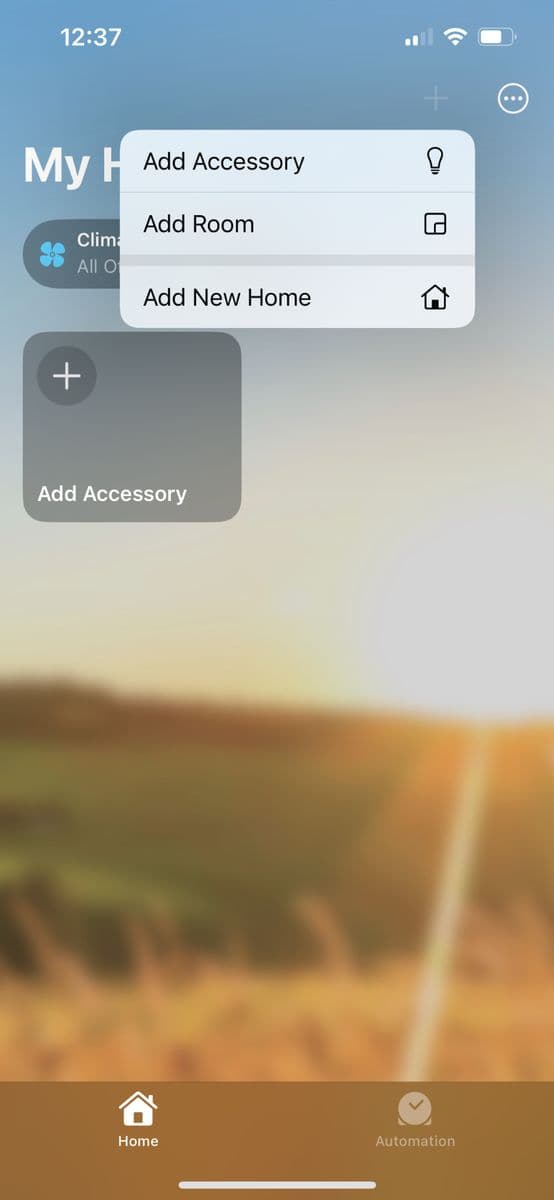
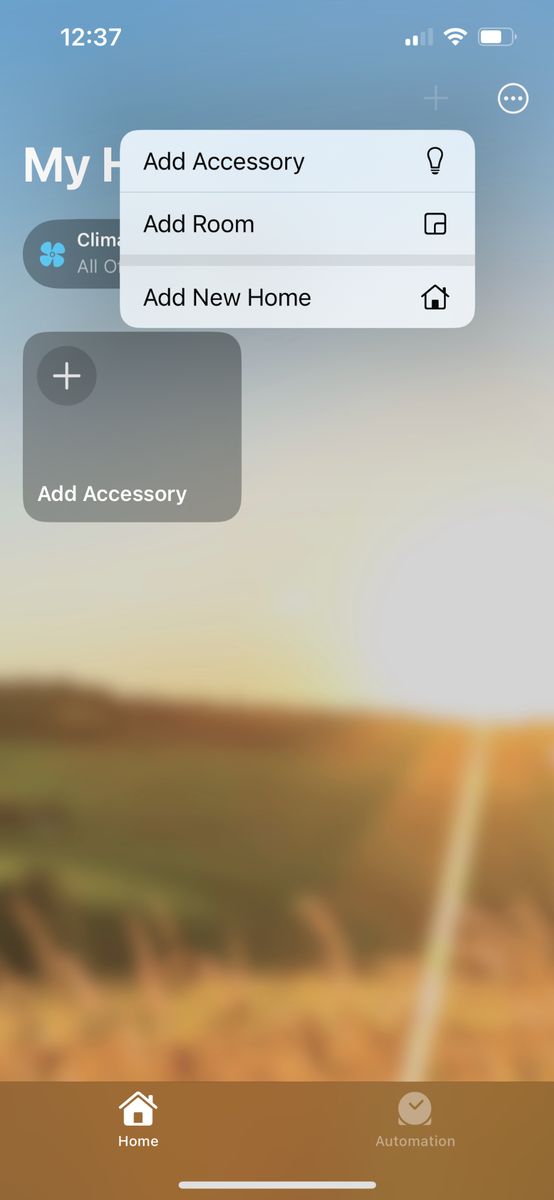
Tap Add Accessory
Open the Home app on your iPhone or iPad. Tap +, then tap Add Accessory.
- Stuck on this step? WhatsApp us a photo
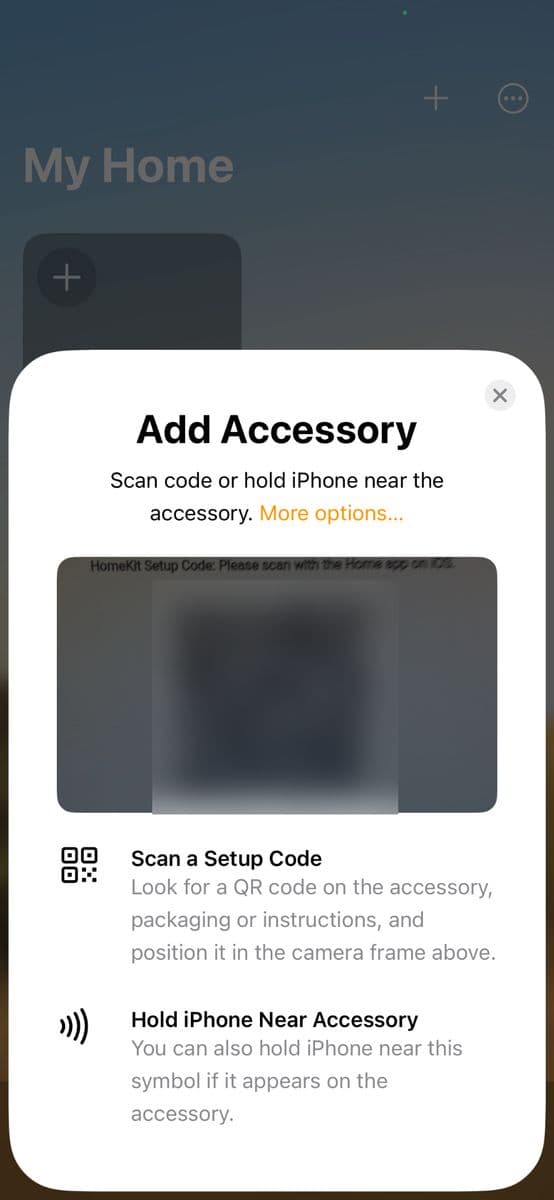
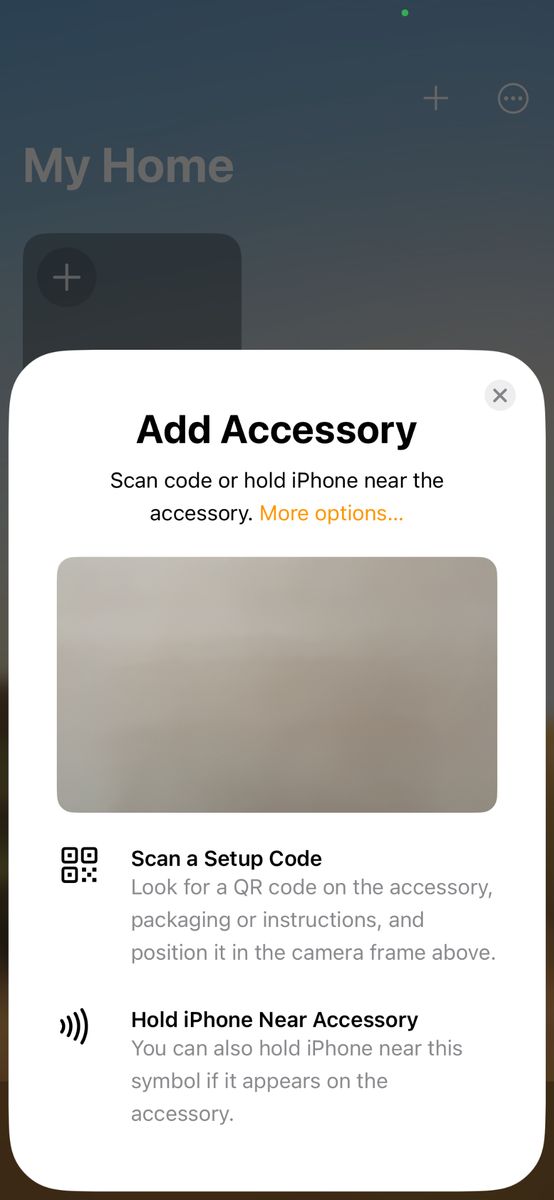
Scan the setup QR code
Point the camera at the QR code on the first page of the instruction manual.
Already set up in the iotics app? The code is on the device's Settings page in the iotics app.
- Stuck on this step? WhatsApp us a photo
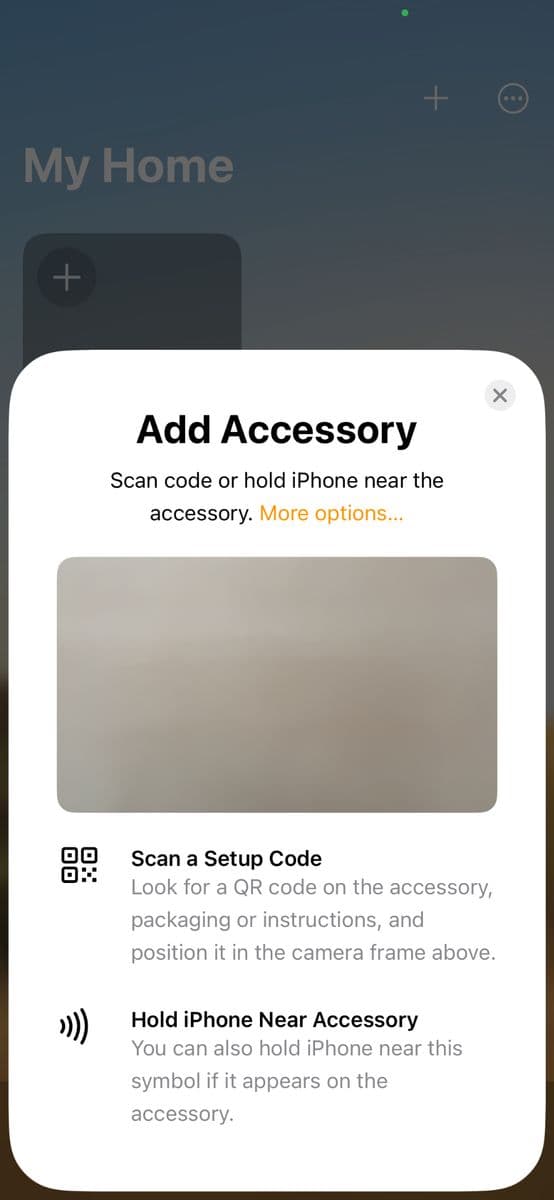
QR not working? Type the code
If the QR code does not scan, tap More options and type the 8-digit setup code instead.
After More options, select your iotics module from the list. Type the 8-digit code printed above the QR code, then tap Continue. If the QR scanned, skip this step.
- Stuck on this step? WhatsApp us a photo
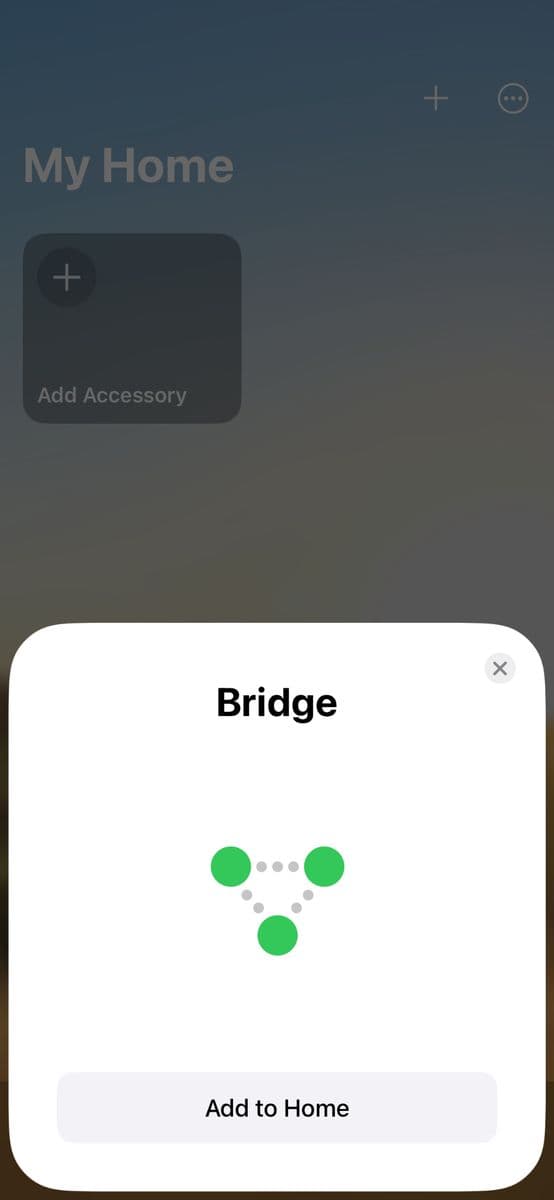
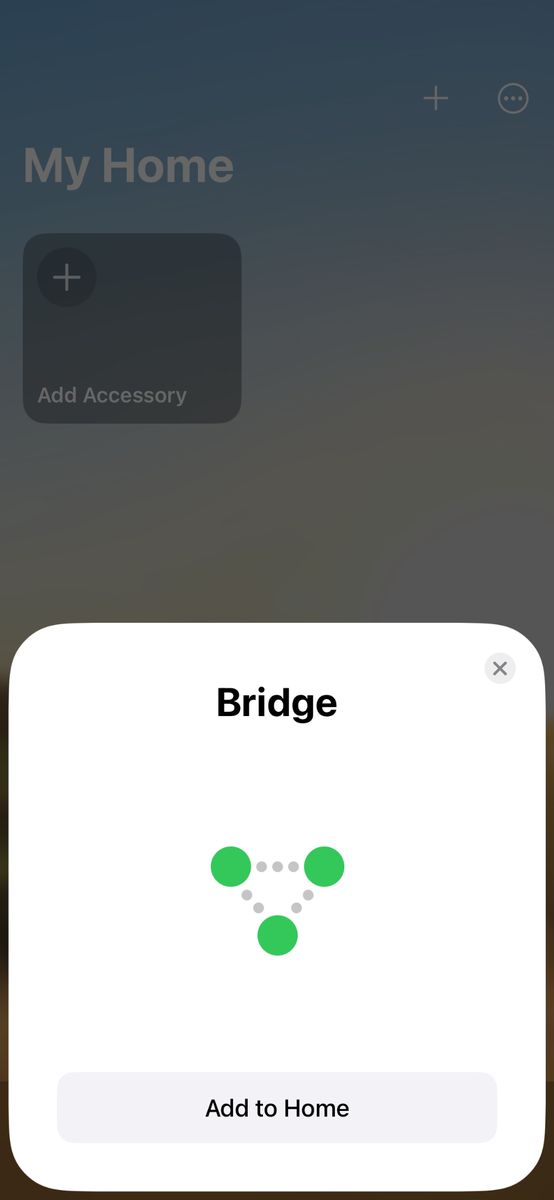
Tap Add to Home
Tap Add to Home. Wait 1–2 minutes and do not use the switch during this time.
- Stuck on this step? WhatsApp us a photo
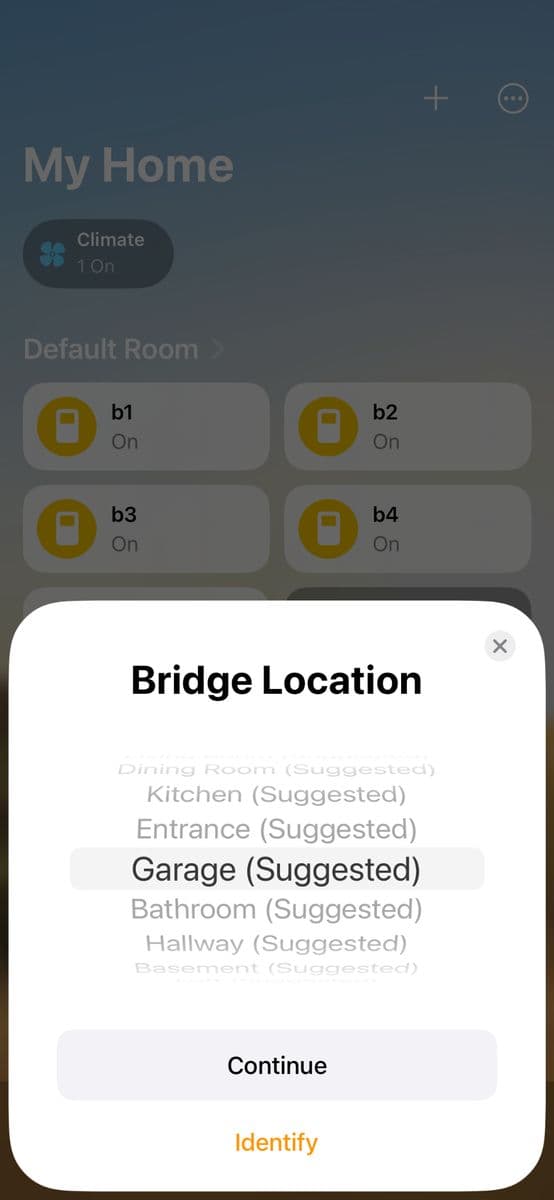
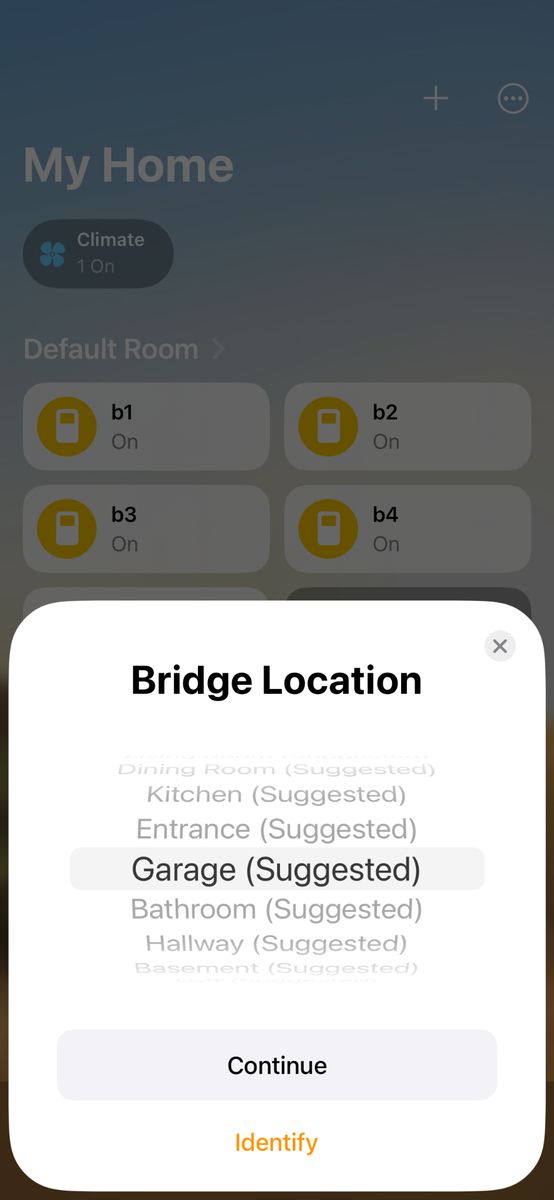
Choose where the module is
Pick a location, for example Living Room, then tap Continue.
Not sure which module this is? Tap Identify. Its lights blink three times.
- Stuck on this step? WhatsApp us a photo
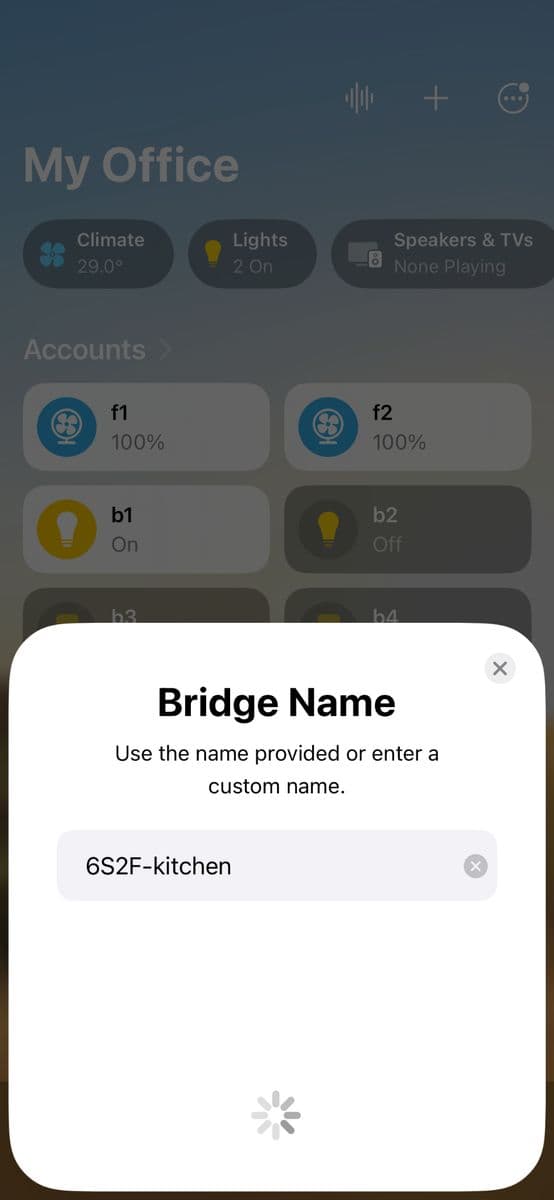
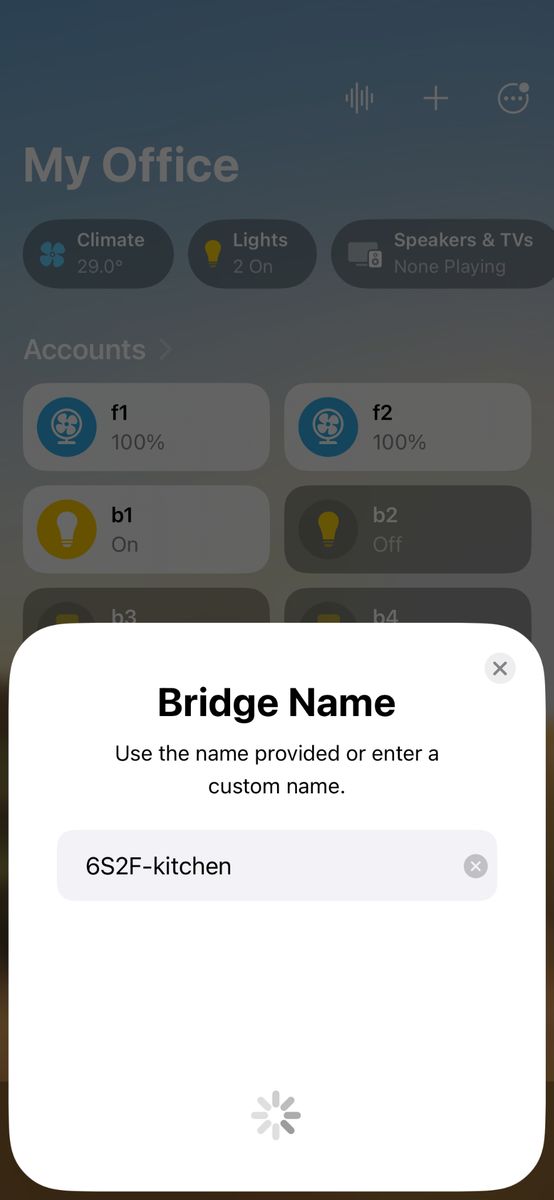
Name the module
Type a name, for example Living Room Switch, then tap Continue.
- Stuck on this step? WhatsApp us a photo
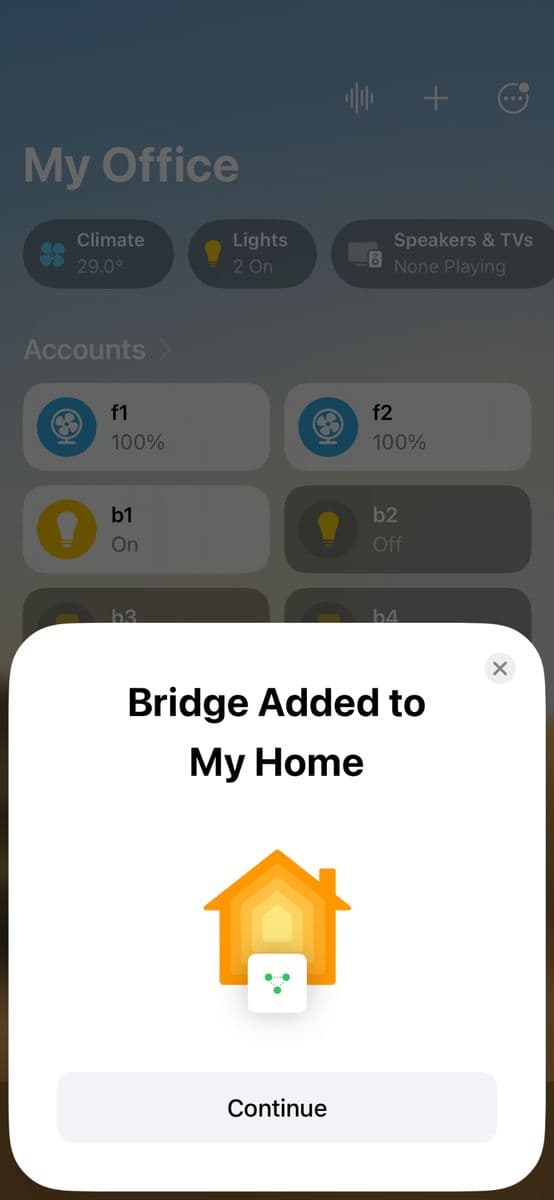
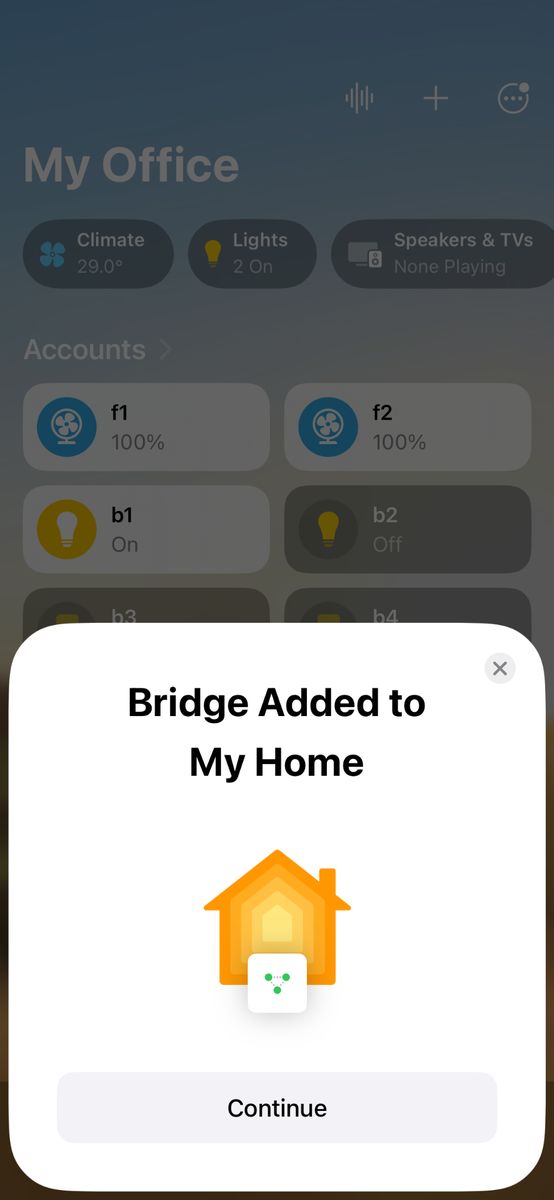
Continue to set up each switch
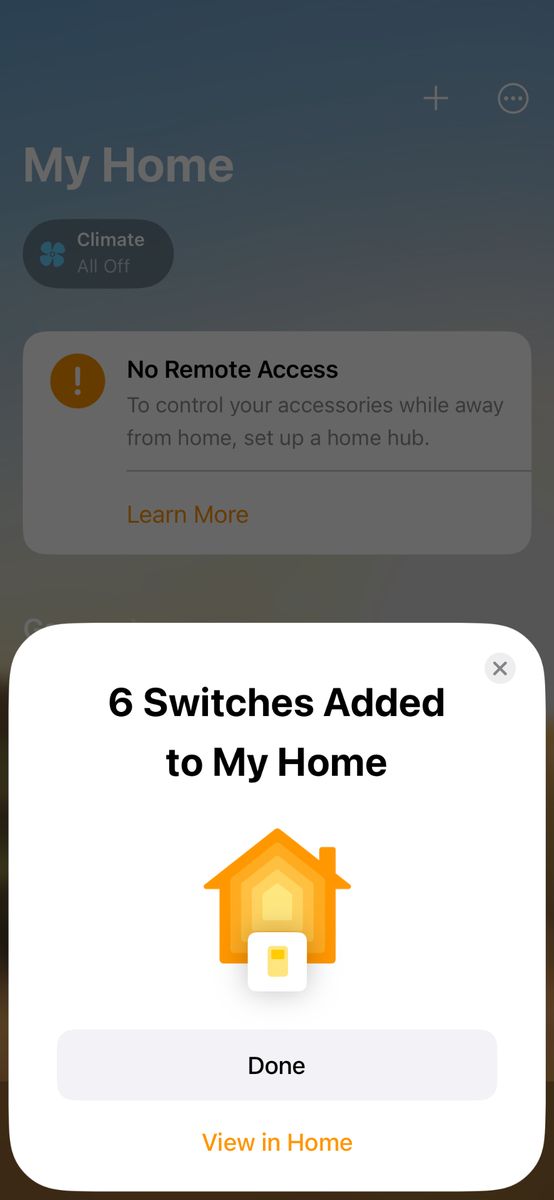
The module is now in My Home. Tap Continue to set up the individual switches.
- Stuck on this step? WhatsApp us a photo
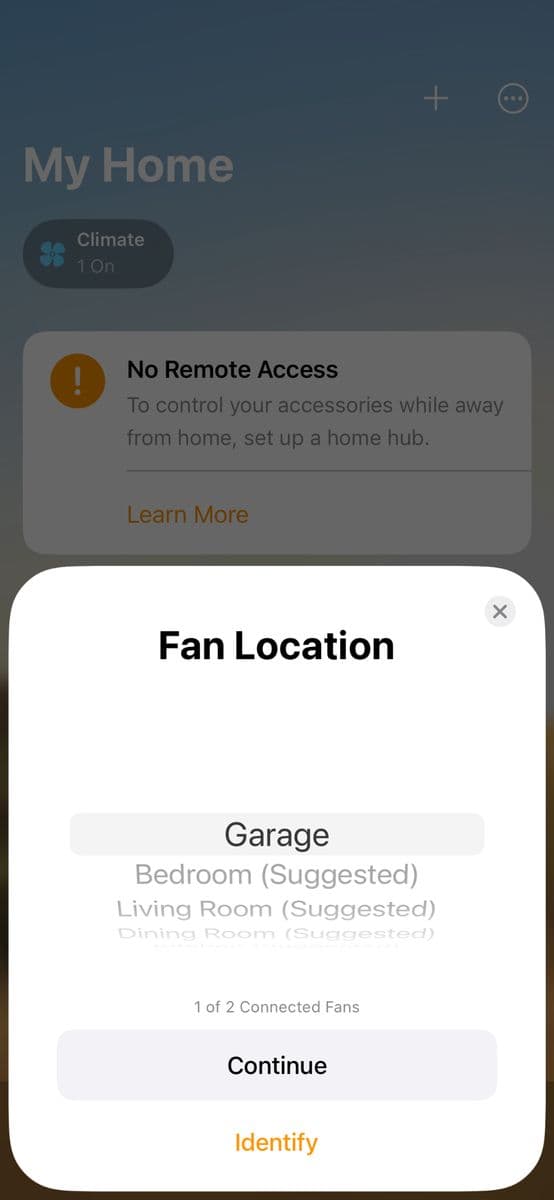
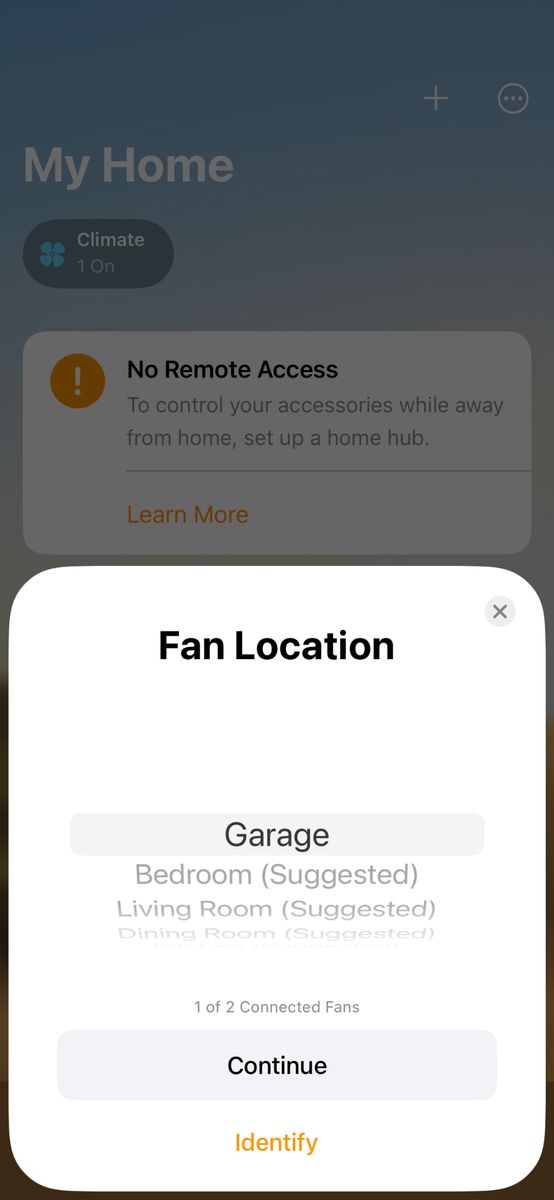
Choose each switch's location
Pick a location for this switch, then tap Continue.
Not sure which switch this is? Tap Identify. That switch turns on and off for a second.
- Stuck on this step? WhatsApp us a photo
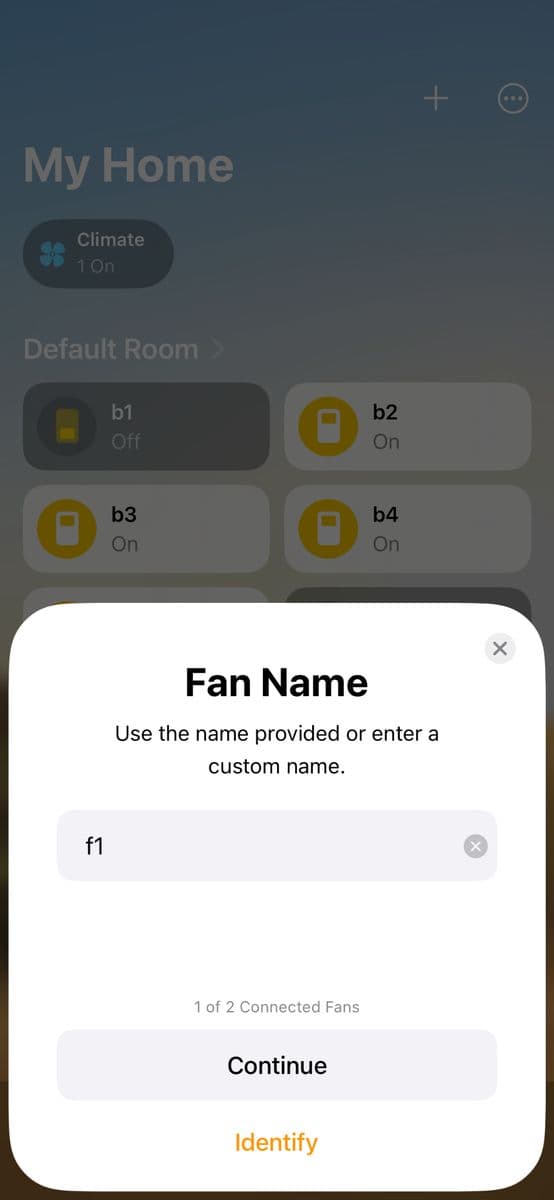
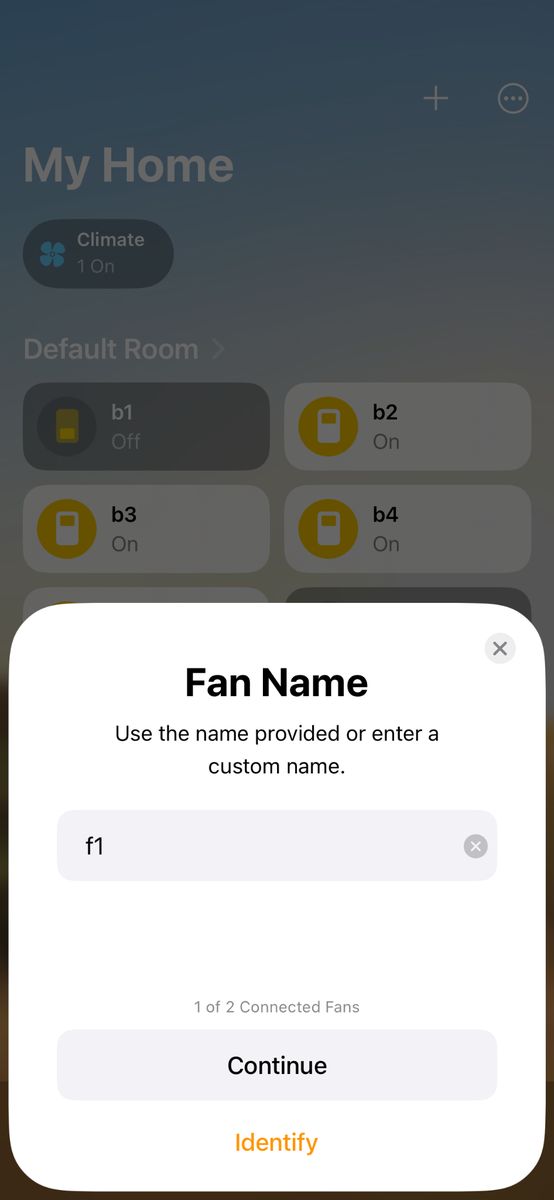
Name the switch
Type a name, for example Living Room Fan, then tap Continue.
- Stuck on this step? WhatsApp us a photo
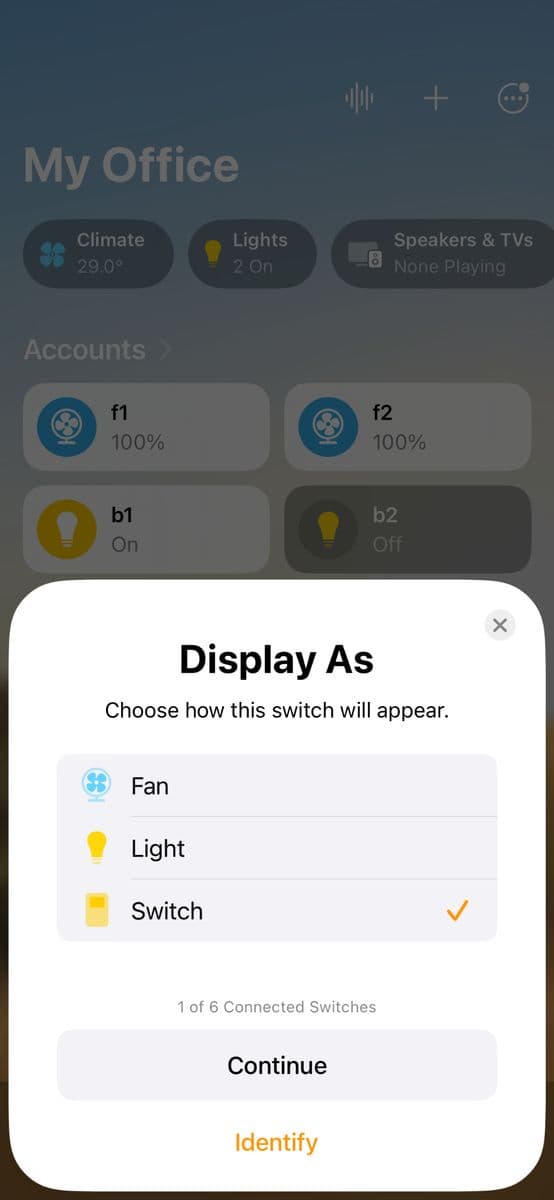
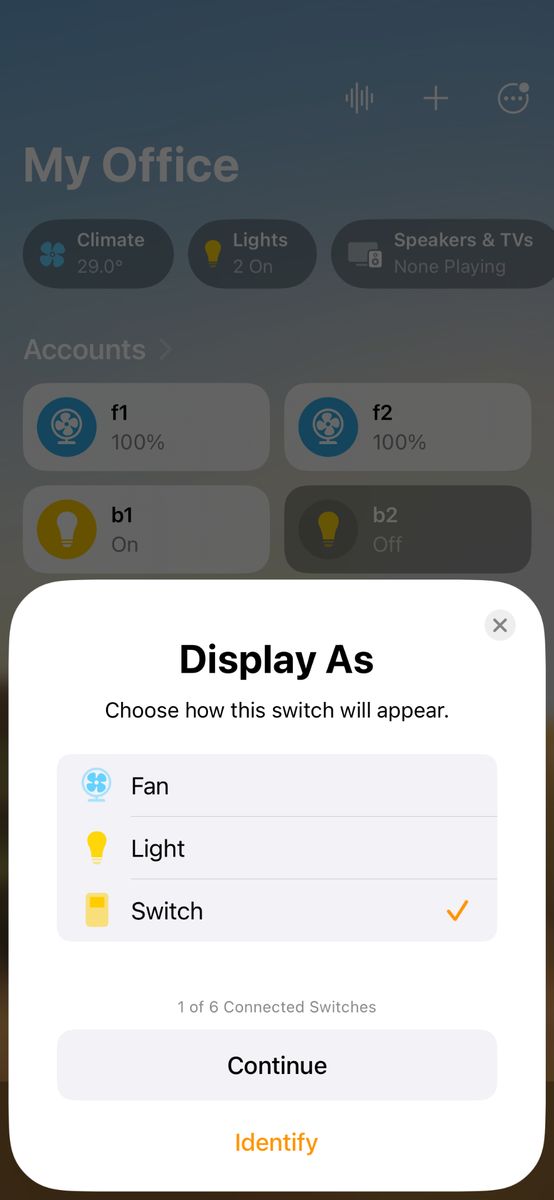
Choose Fan, Light or Switch
Choose how this switch shows in Apple Home, then tap Continue. Repeat the last three steps for each switch.
- Stuck on this step? WhatsApp us a photo
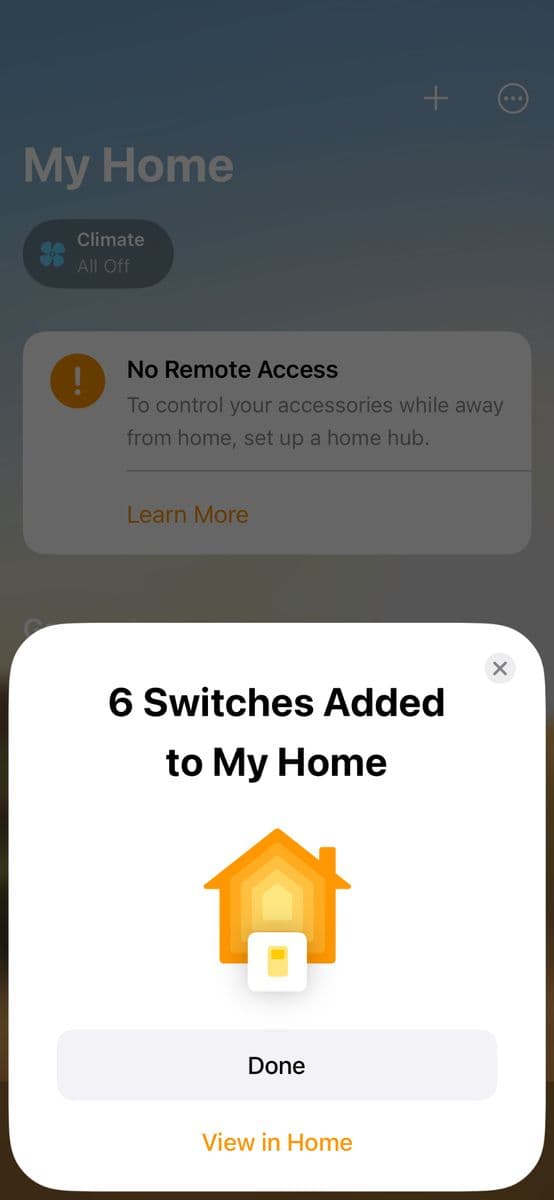
Control it with Siri
Say "Hey Siri, turn on Light 1", "Hey Siri, turn on Hall" or "Hey Siri, turn on everything".
To remove it later, open the Home app, tap ⋯, your home name, Home Hubs & Bridges, the Iotics Bridge, then Remove Bridge.