Rooms & renaming — 2 Switch + 2 Plug
- Stuck on this step? WhatsApp us a photo
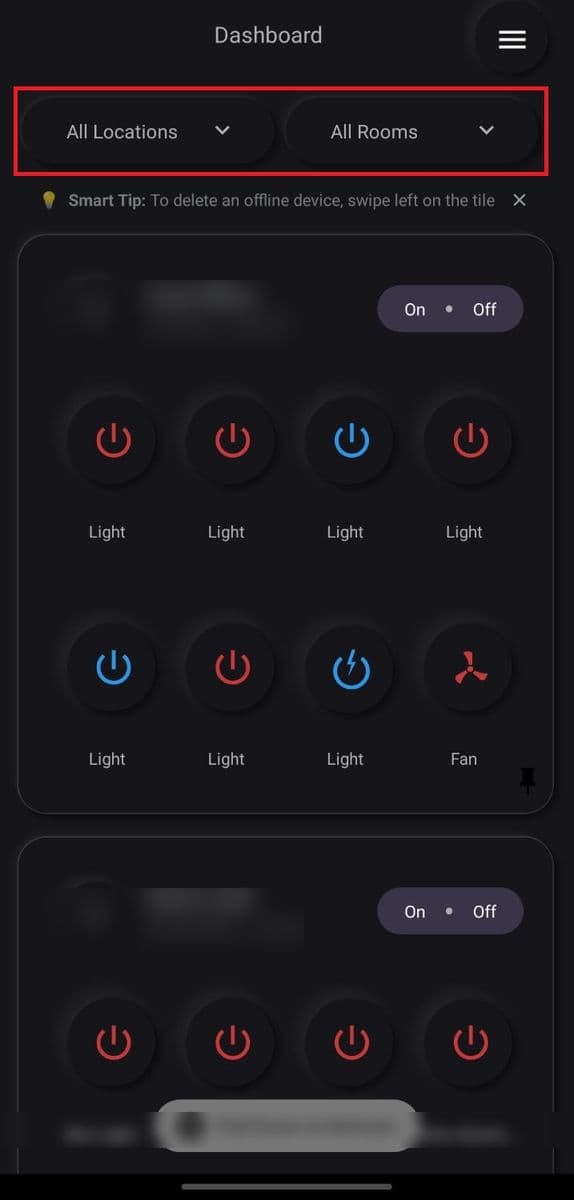
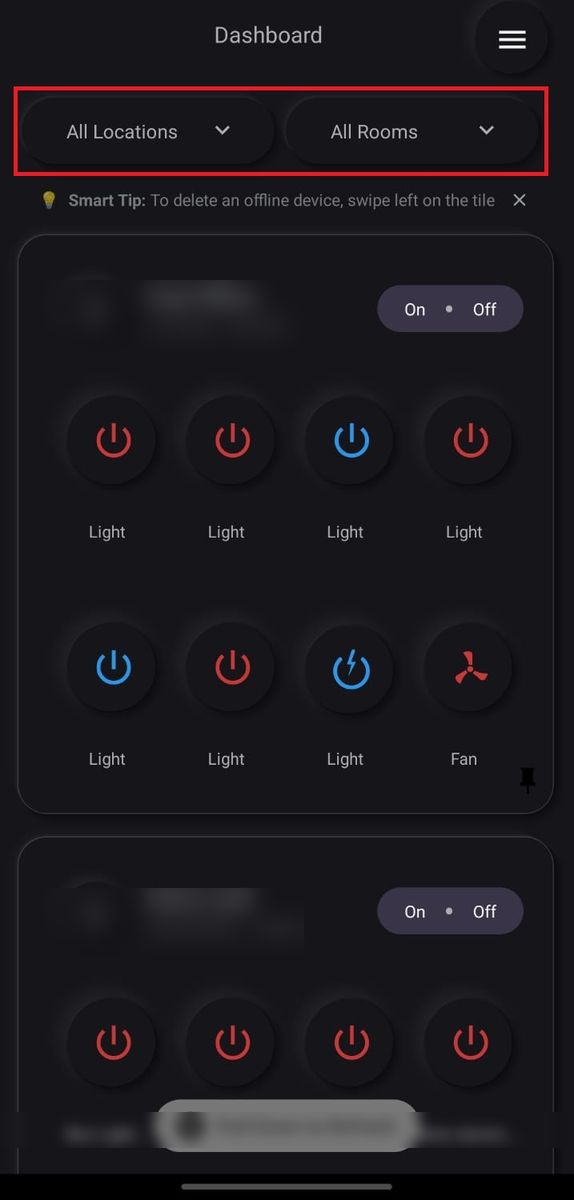
Filter by room or location
On the Dashboard, tap All Rooms or All Locations and pick one to see only those devices.
- Stuck on this step? WhatsApp us a photo
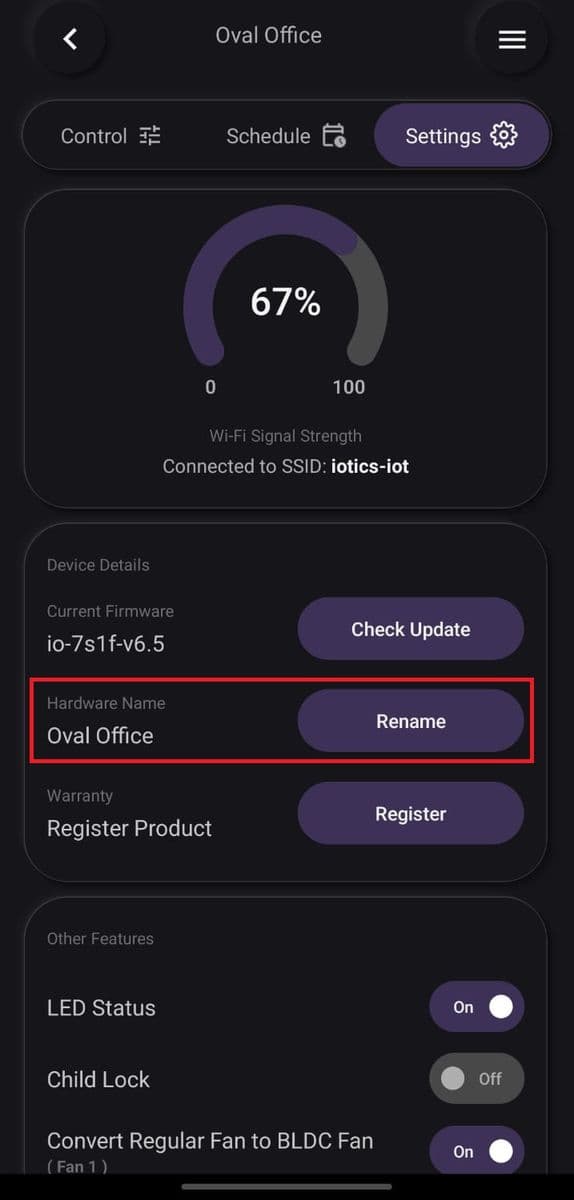
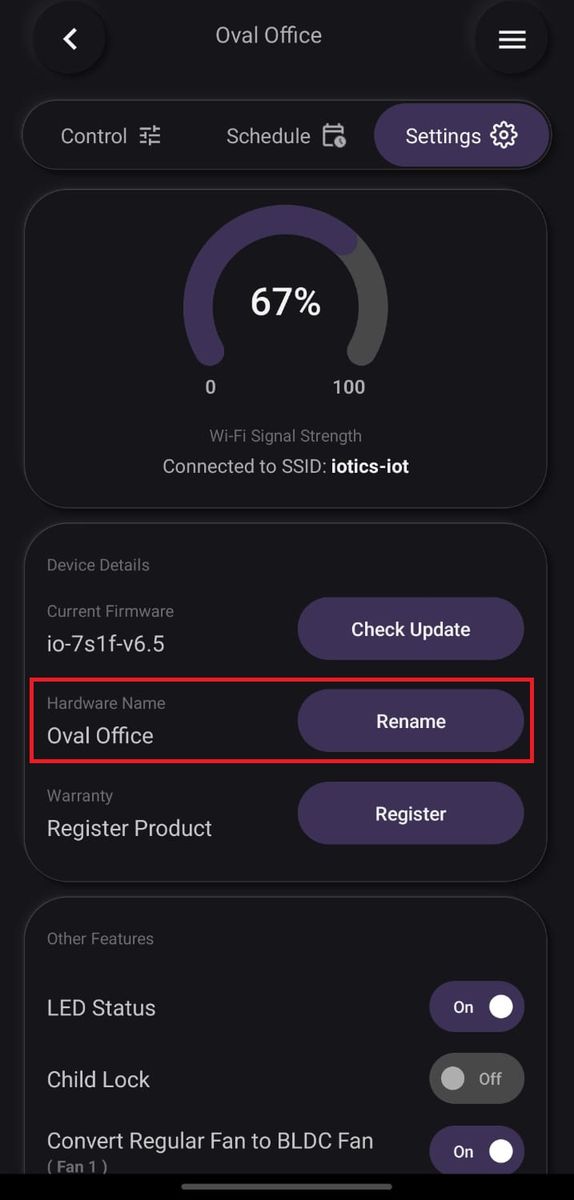
Rename a device
Tap ⋮ on the device, then Device Settings, Settings and Rename. Change the name, room and location, then tap Update.
- Stuck on this step? WhatsApp us a photo
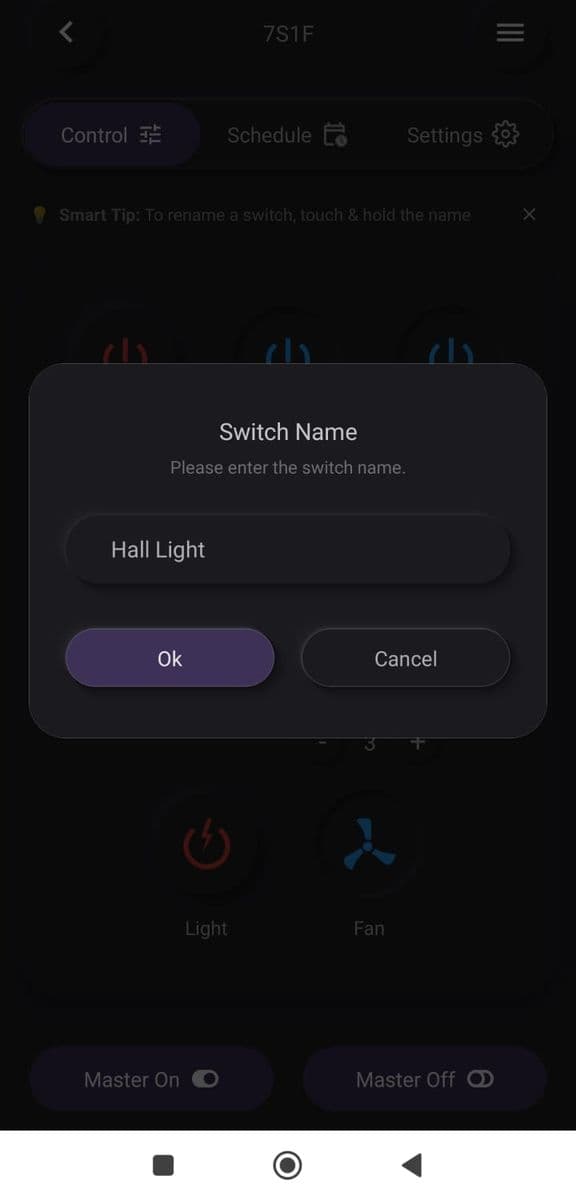
Rename a single switch
Tap ⋮ on the device to open its controls. Press and hold a switch name, type a new name, and tap OK.
- Stuck on this step? WhatsApp us a photo
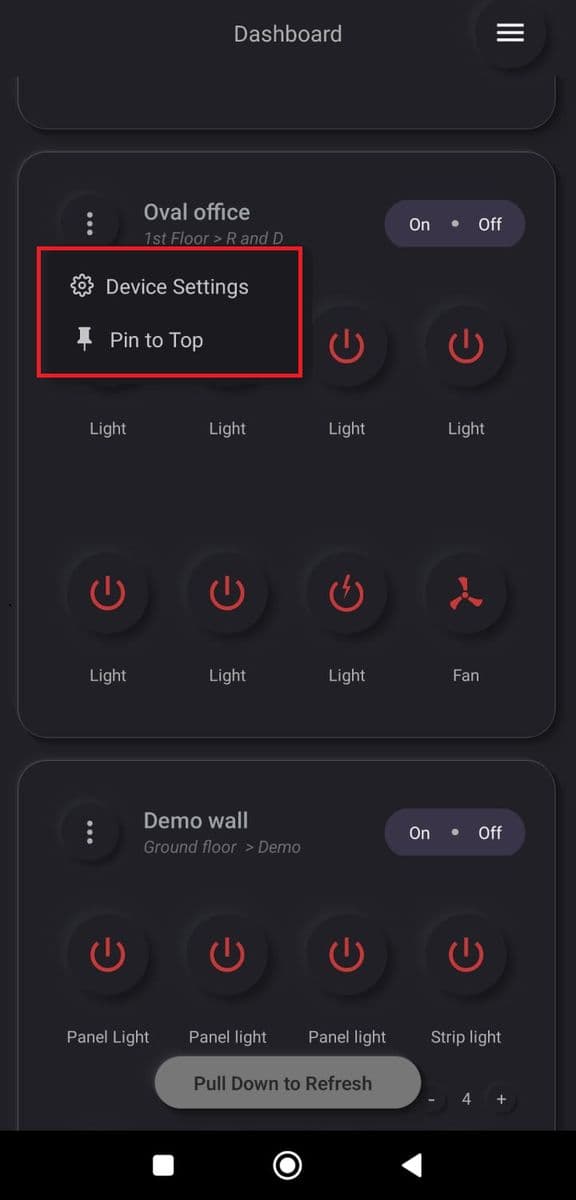
Pin a device to the top
Tap ⋮ on the device, then Pin to Top. Tap Yes, Pin this Device to confirm.
- Stuck on this step? WhatsApp us a photo
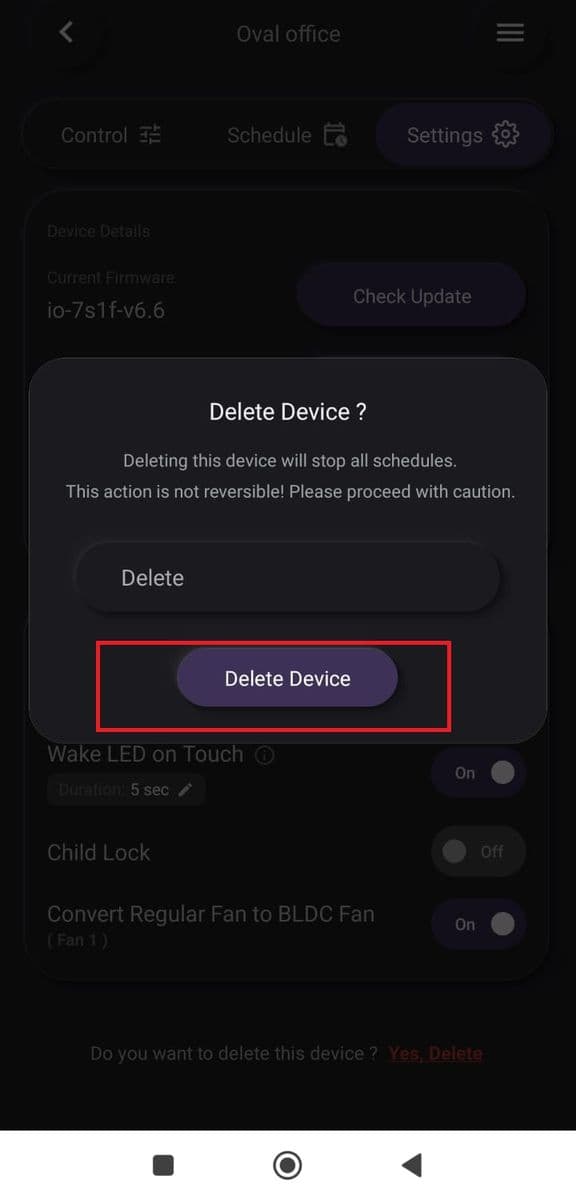
Remove a device you no longer use
Tap ⋮, then Device Settings and the Settings tab. Tap Delete Device, type Delete, and tap Delete Device.
Deleting removes the device from your iotics account. To use it again, set it up again in the app.
- Stuck on this step? WhatsApp us a photo
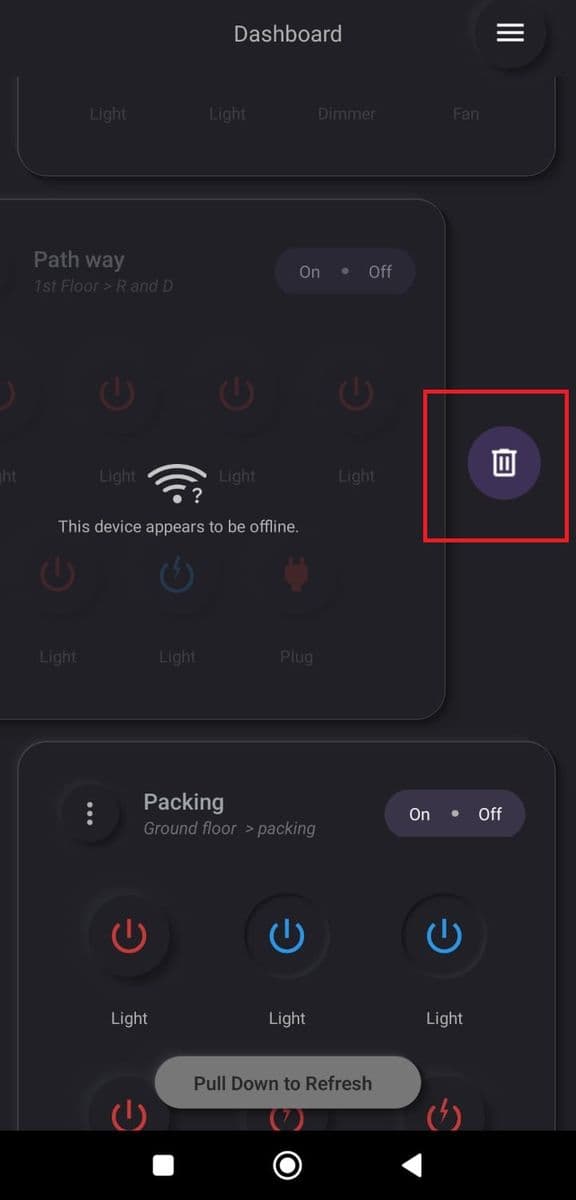
Remove an offline device
If the device is offline, swipe left on its tile and tap the delete (bin) icon.