Add with Matter — 6 Switch + 1 Dimmer + 1 Fan
Before you start
- Matter and mesh networking cannot run together. Turn off mesh networking before you add the switch with Matter.
- Find the Matter QR code that came with your switch, or in the iotics app.
- Use a Matter app such as Amazon Alexa, Google Home, Apple Home or Samsung SmartThings.
- The pictures show the Alexa app. Menus in other apps may look slightly different.
- Stuck on this step? WhatsApp us a photo
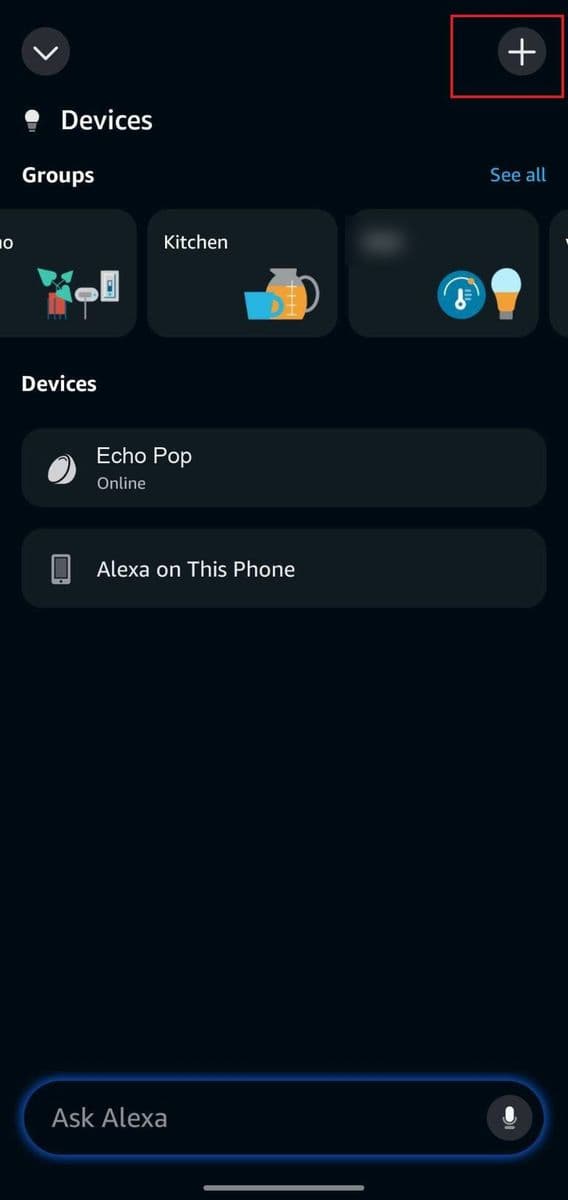
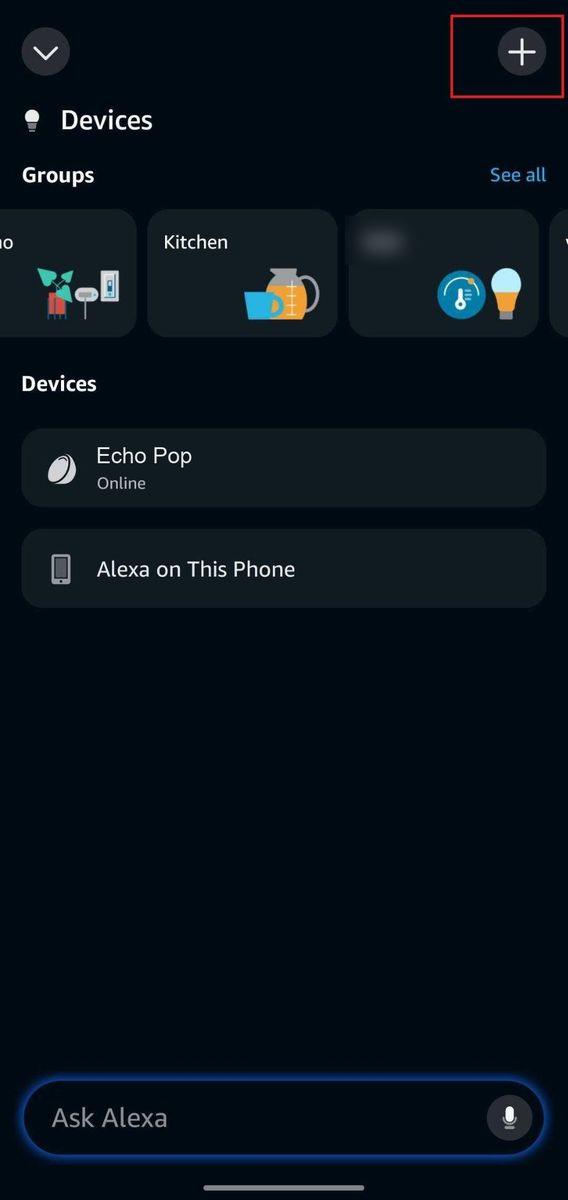
Tap the Add (+) icon
Open your Matter app, for example Amazon Alexa, and tap the Add (+) icon.
- Stuck on this step? WhatsApp us a photo
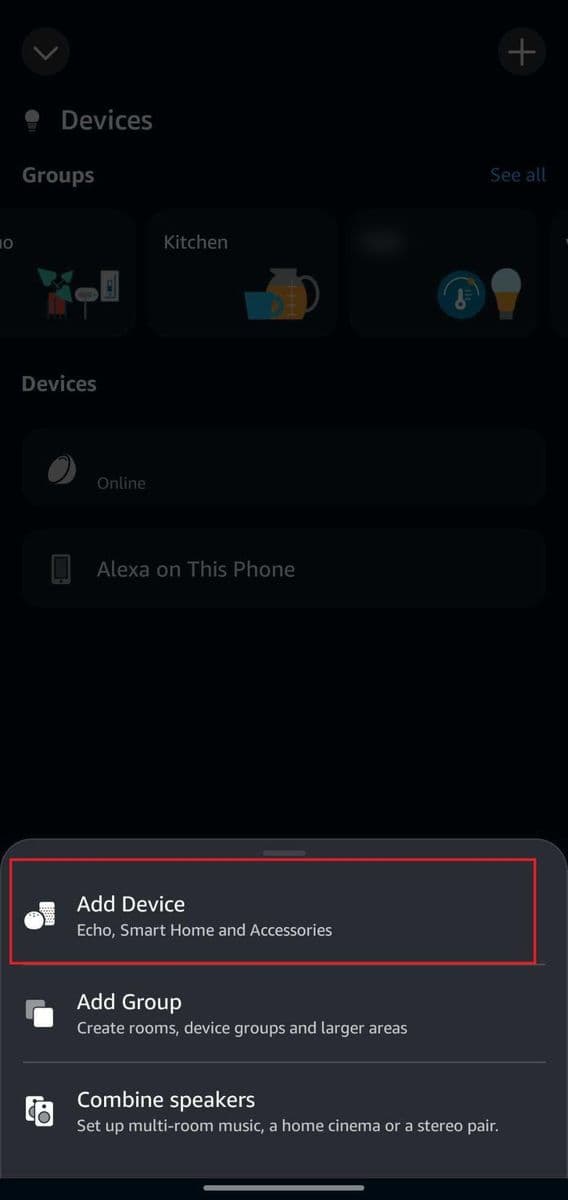
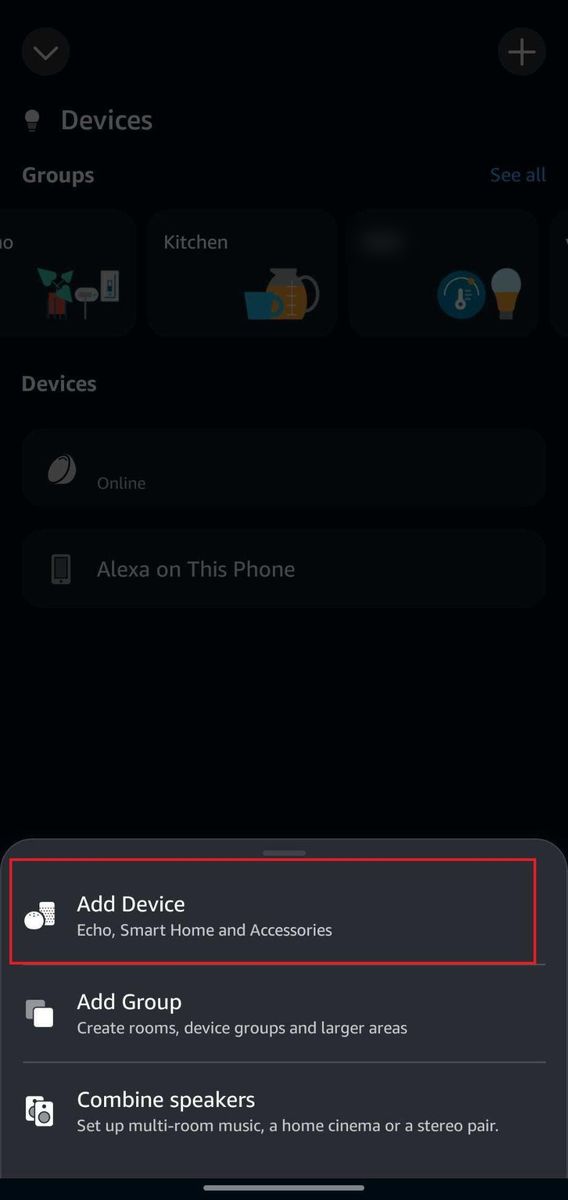
Tap Add Device
Tap Add Device.
- Stuck on this step? WhatsApp us a photo
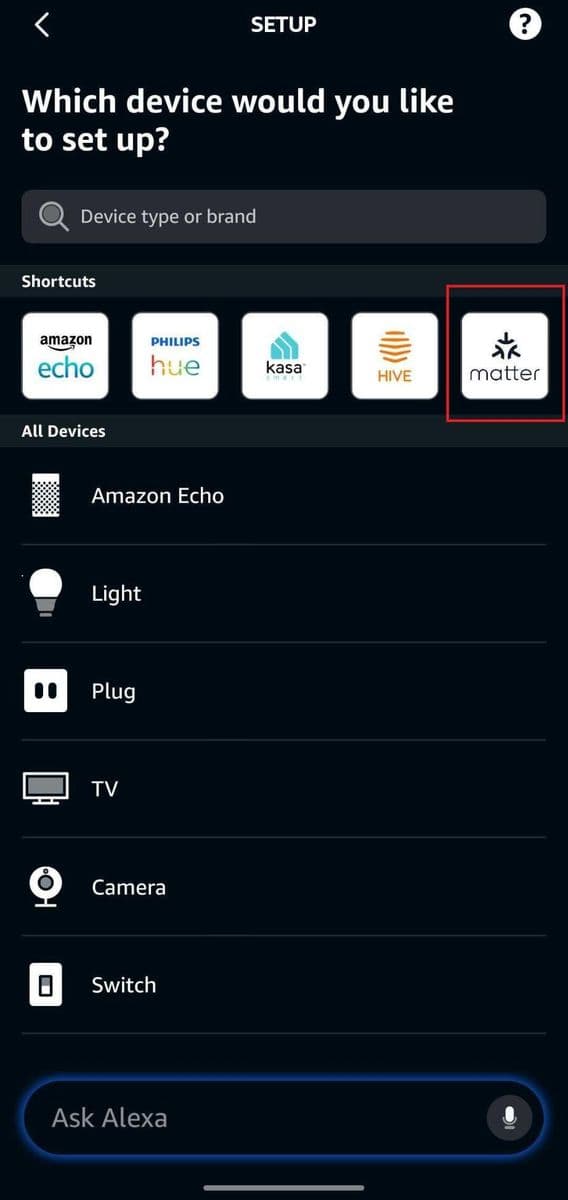
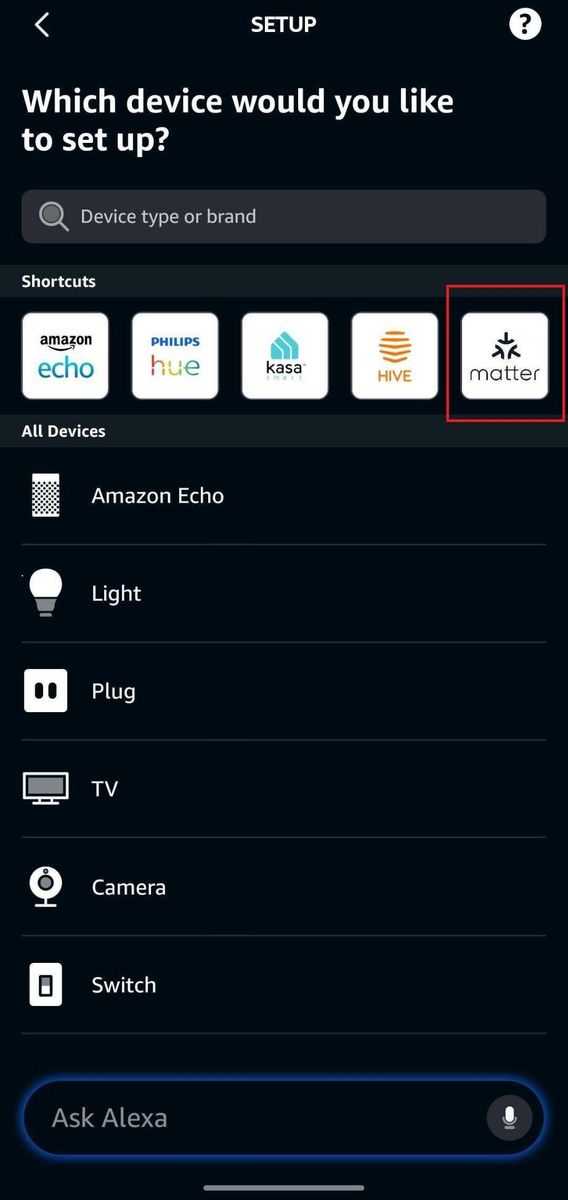
Select Matter
Select Matter from the list of device types.
- Stuck on this step? WhatsApp us a photo
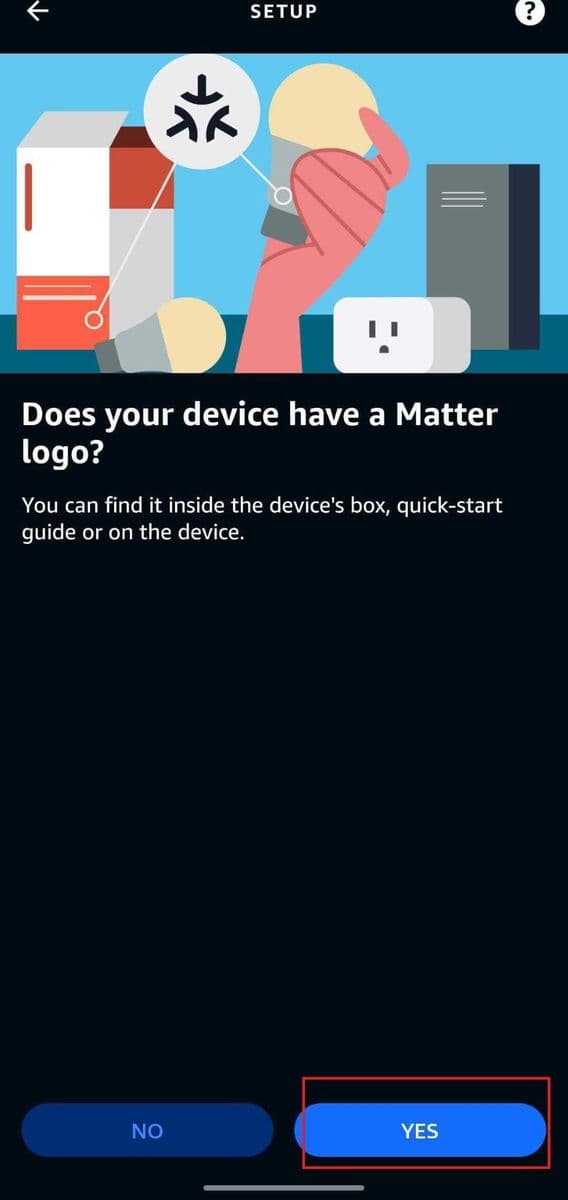
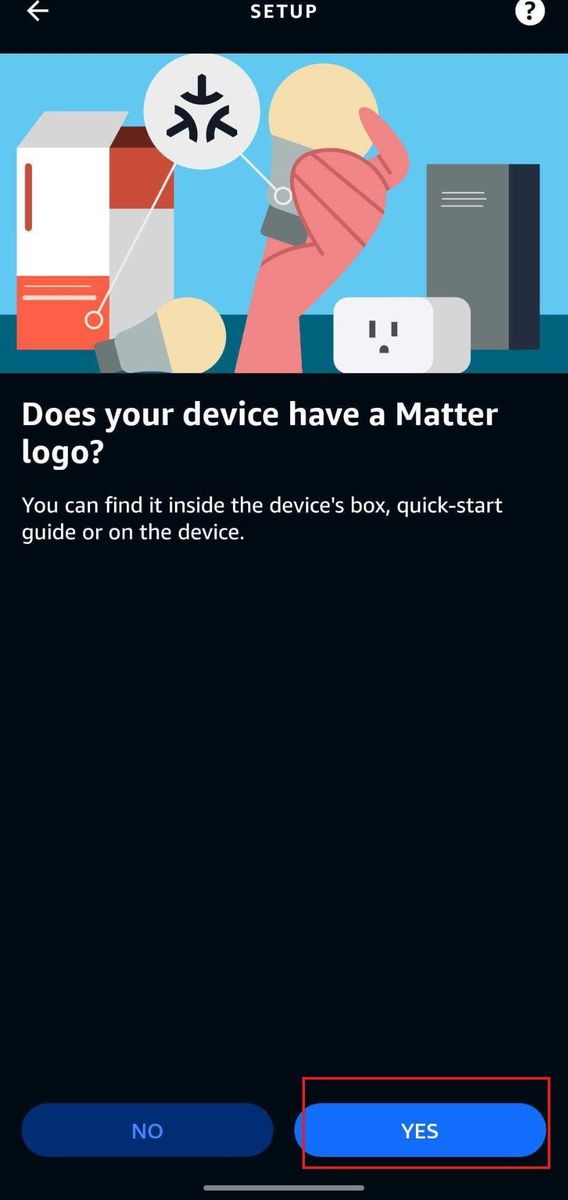
Tap Yes if asked
If the app asks a question to continue, tap Yes.
- Stuck on this step? WhatsApp us a photo
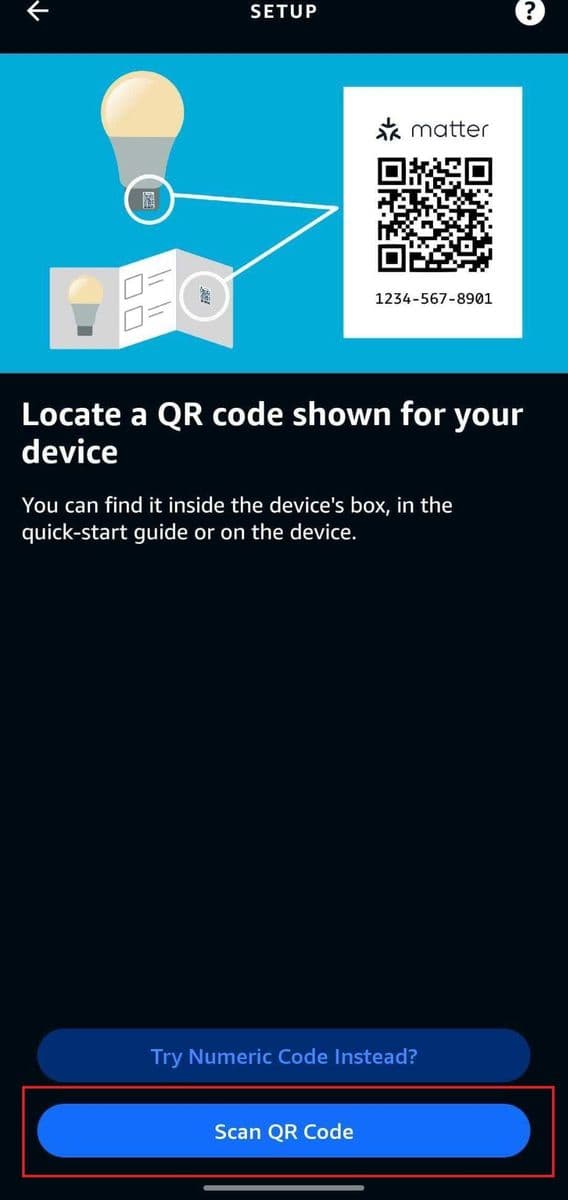
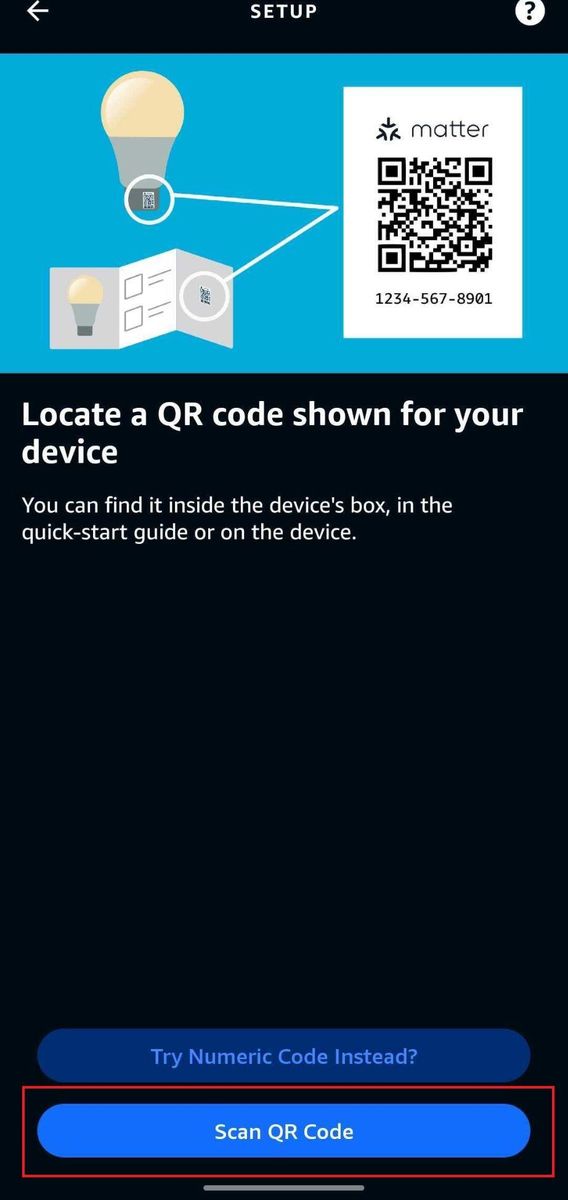
Scan the Matter QR code
Tap Scan QR Code and scan the Matter QR code that came with your iotics switch.
Already set up in the iotics app? The Matter QR and setup code are on the device's Settings page, under QR & Pairing Code for Matter & Apple Home Setup.
- Stuck on this step? WhatsApp us a photo
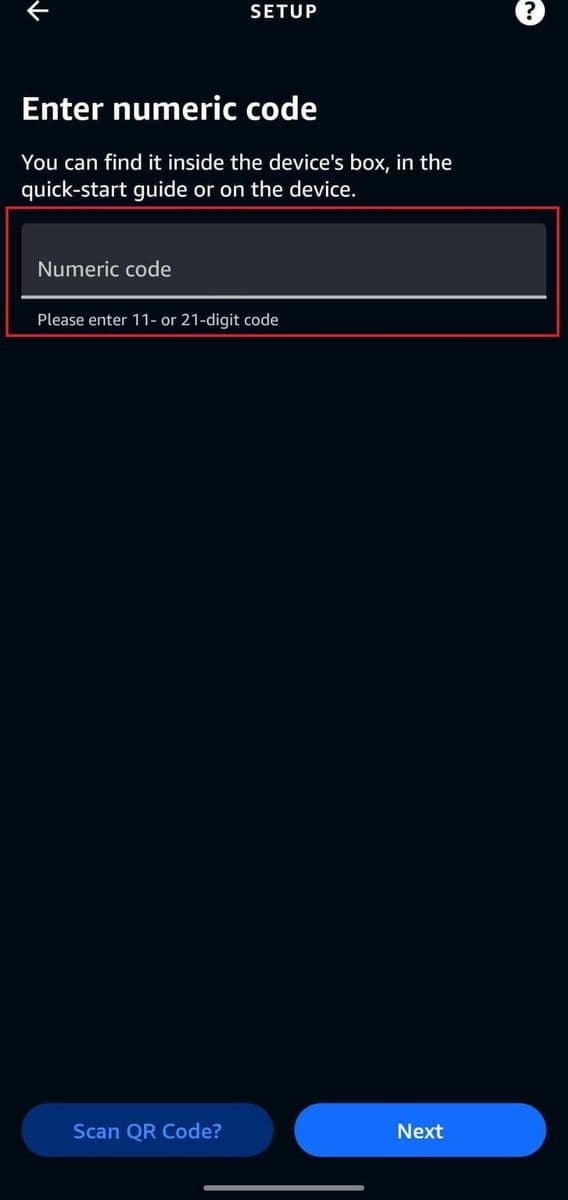
Or type the numeric code
Can't scan the QR code? Tap Try Numeric Code Instead and type the Matter setup code.
- Stuck on this step? WhatsApp us a photo
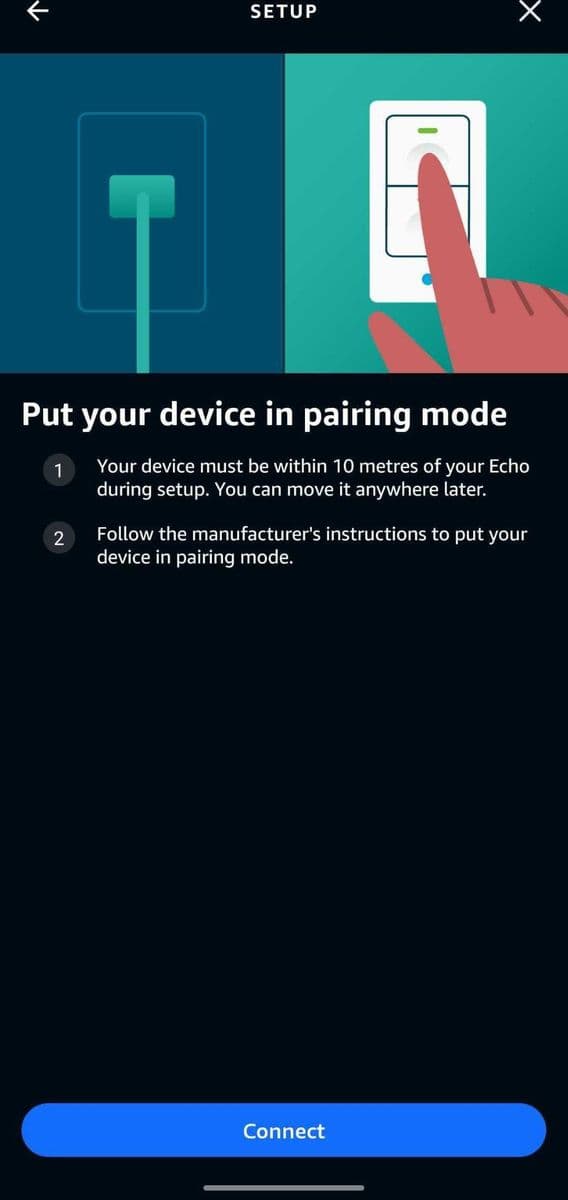
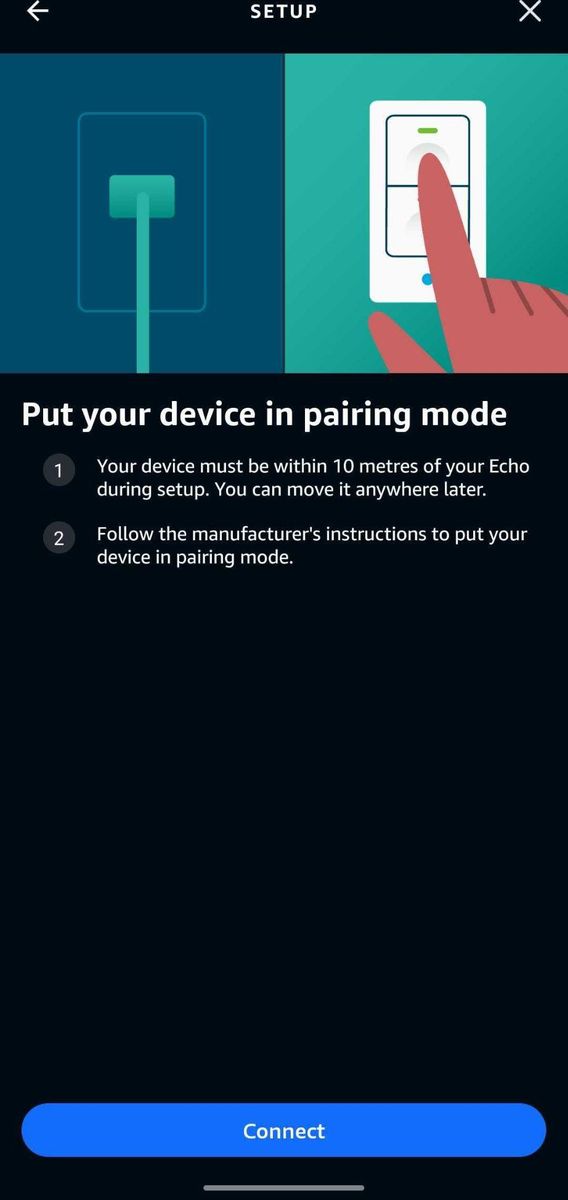
Tap Connect
Tap Connect to start pairing. Wait while the app connects to your iotics switch.
- Stuck on this step? WhatsApp us a photo
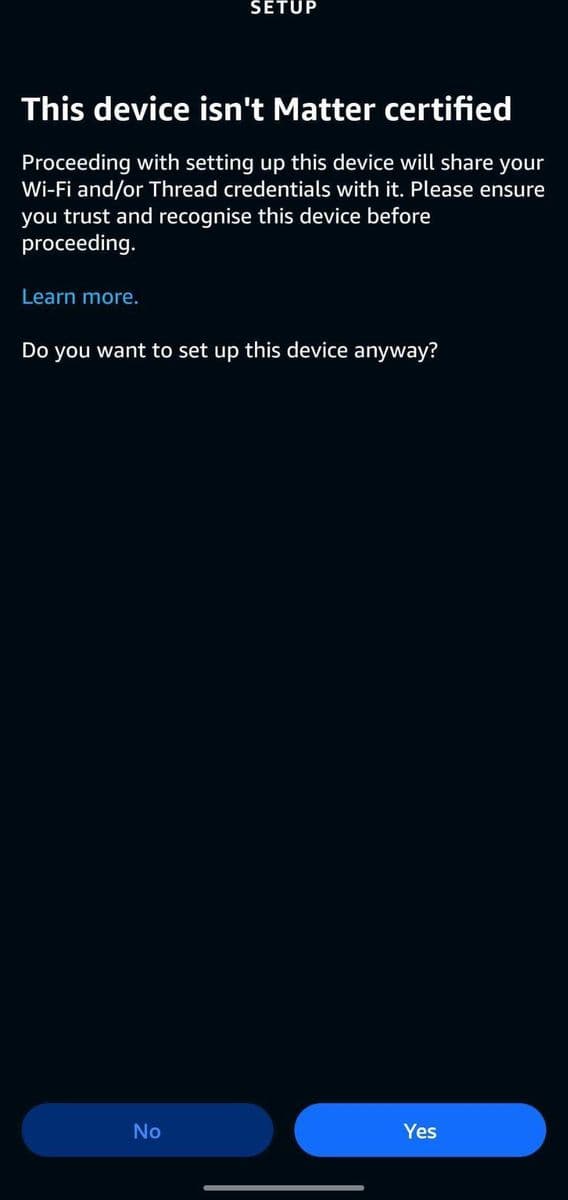
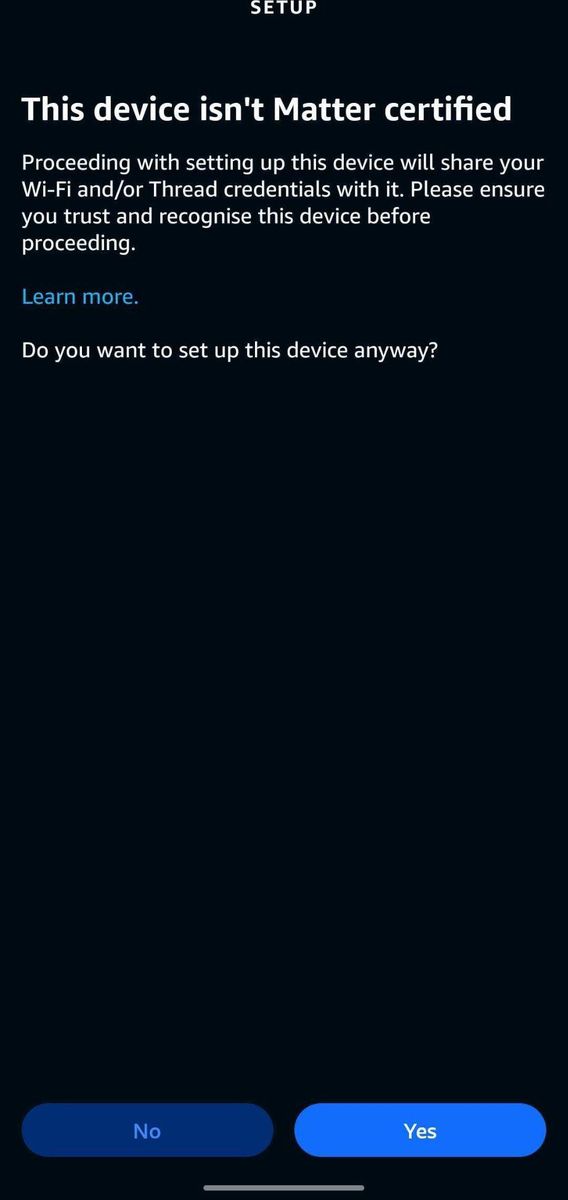
Tap Yes on the certification warning
Your app may warn "This device isn't Matter certified … set up anyway?". If it does, tap Yes.
- Stuck on this step? WhatsApp us a photo
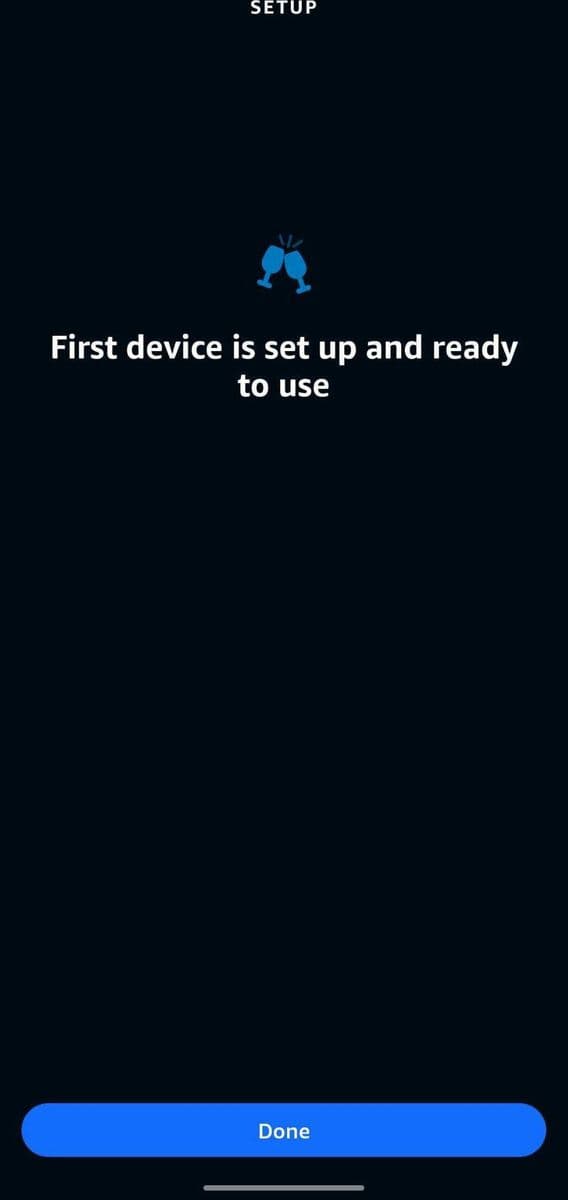
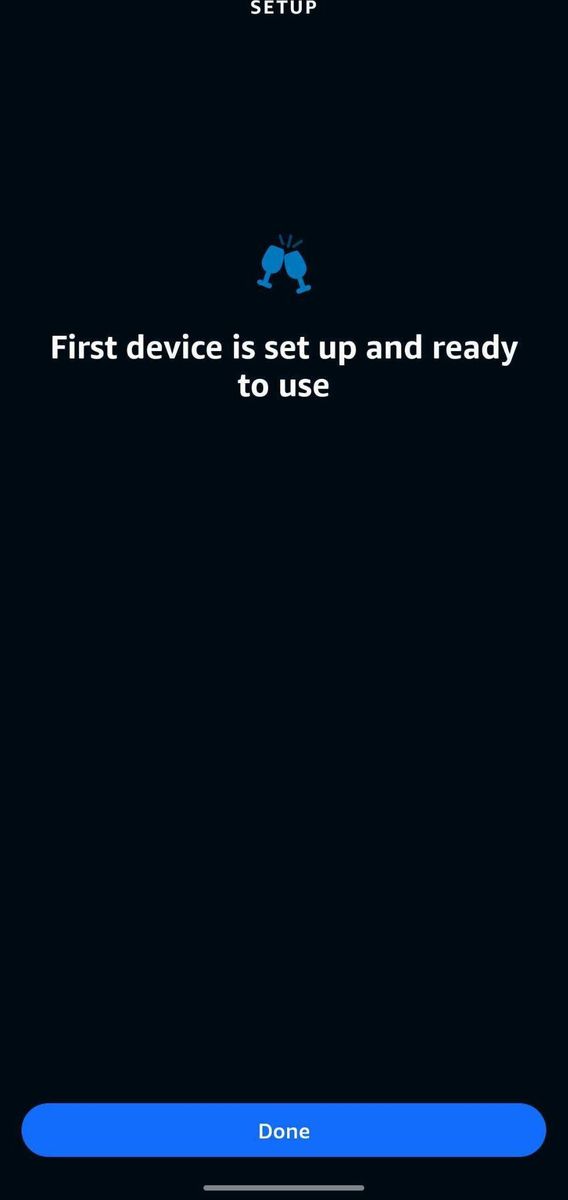
Finish the setup
Wait until setup completes. Tap Next, then tap Done. Your switches are ready to control.