Change Wi-Fi network — 6 Switch + 2 Dimmer
- Stuck on this step? WhatsApp us a photo
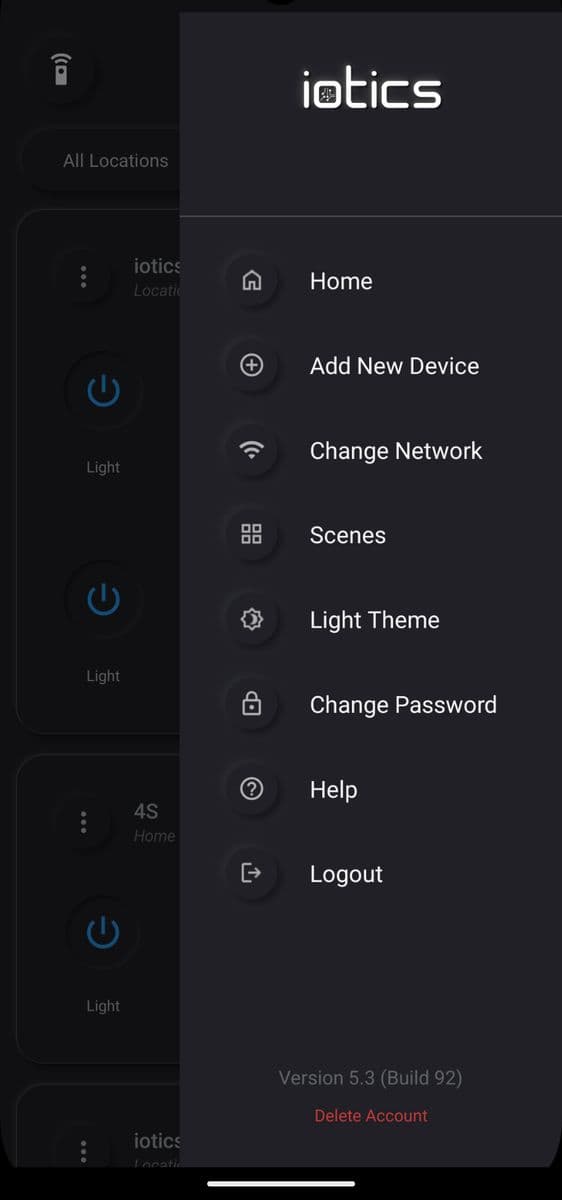
Tap Change Network
On the Dashboard, tap the menu (☰), then tap Change Network.
- Stuck on this step? WhatsApp us a photo
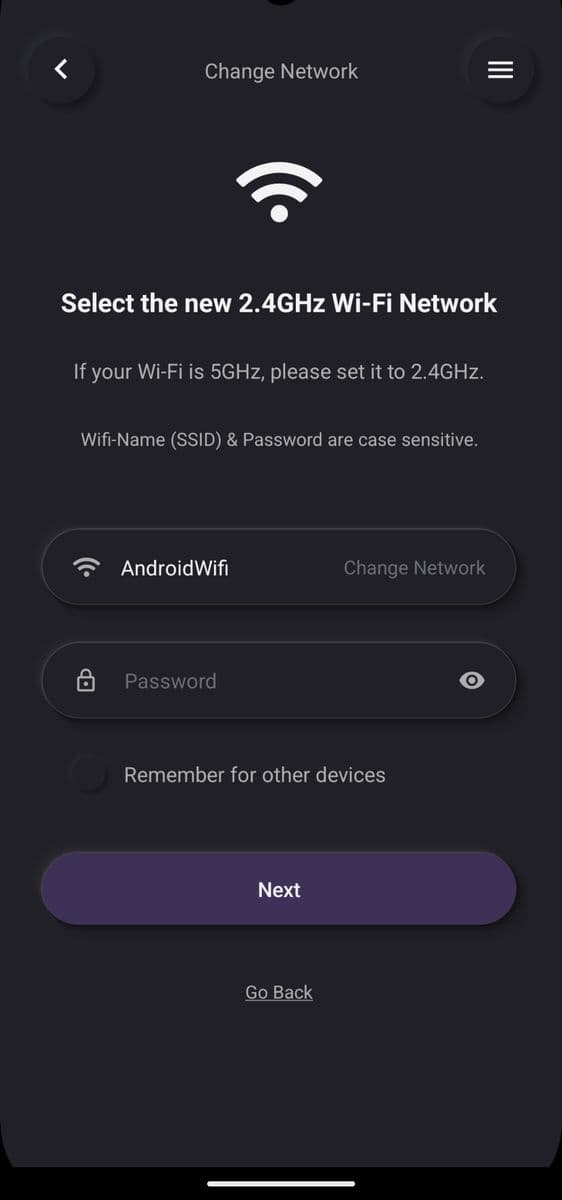
Enter the new Wi-Fi details
Enter your new 2.4 GHz Wi-Fi name and password, then tap Next.
- Stuck on this step? WhatsApp us a photo
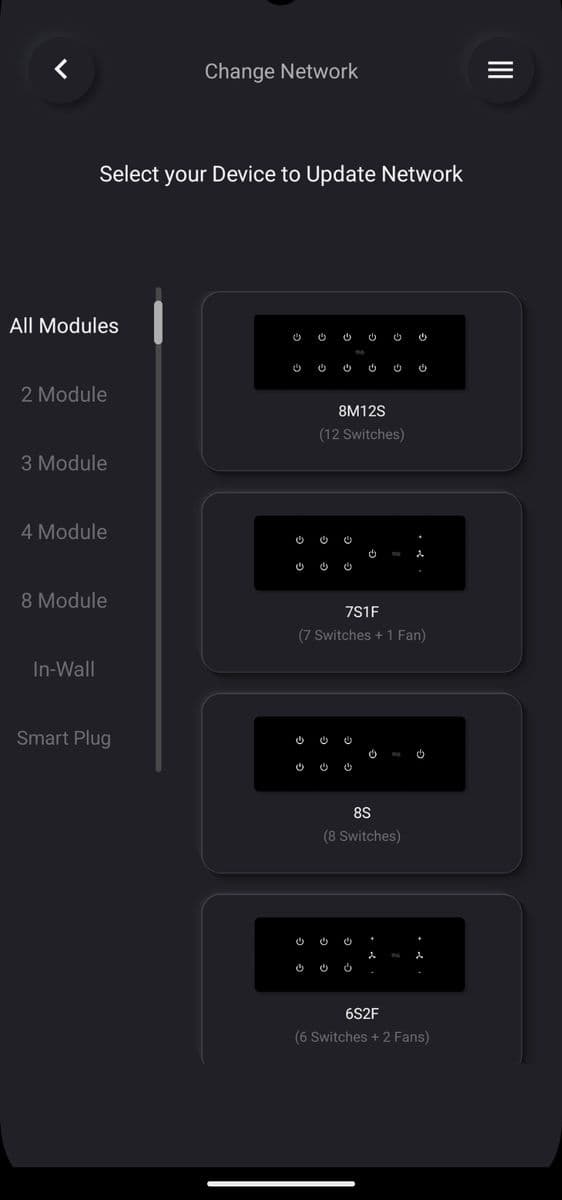
Select a switch to update
Select the switch you want to update first.
- Stuck on this step? WhatsApp us a photo
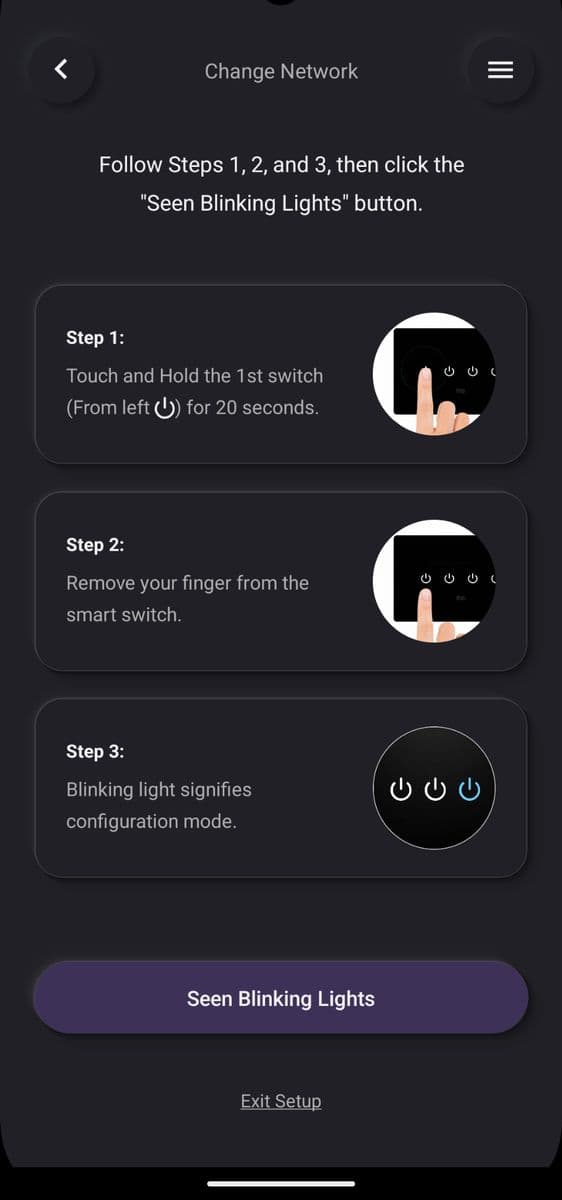
Put the switch in setup mode
Touch and hold switch 1 for 20 seconds, then release. When the lights blink, tap Seen Blinking Lights.
- Stuck on this step? WhatsApp us a photo
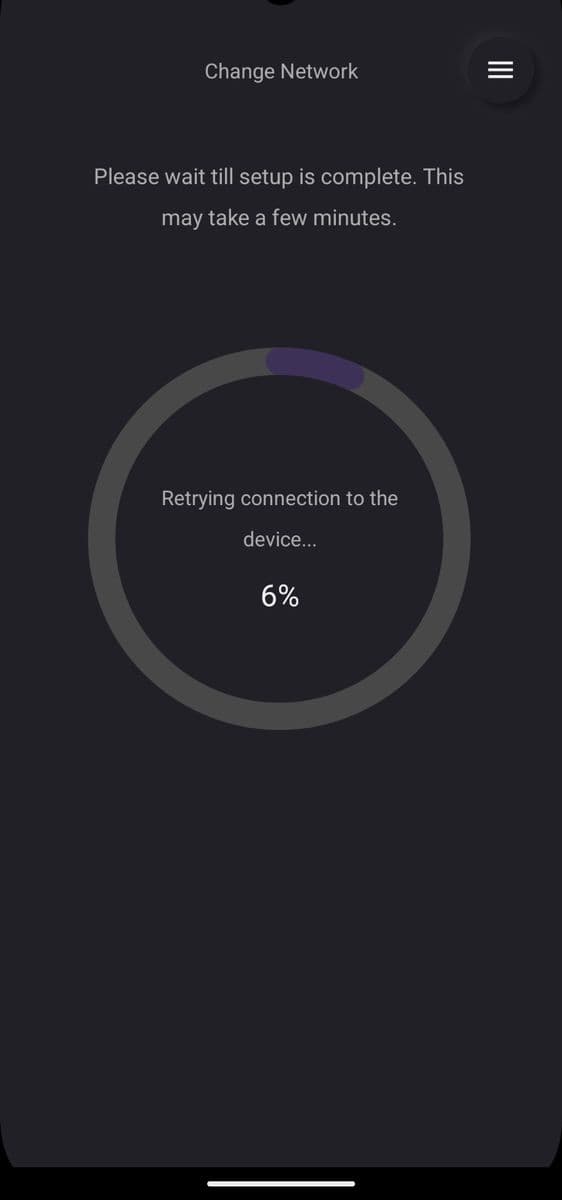
Wait for the update
Wait a few minutes until setup is complete.
- Stuck on this step? WhatsApp us a photo
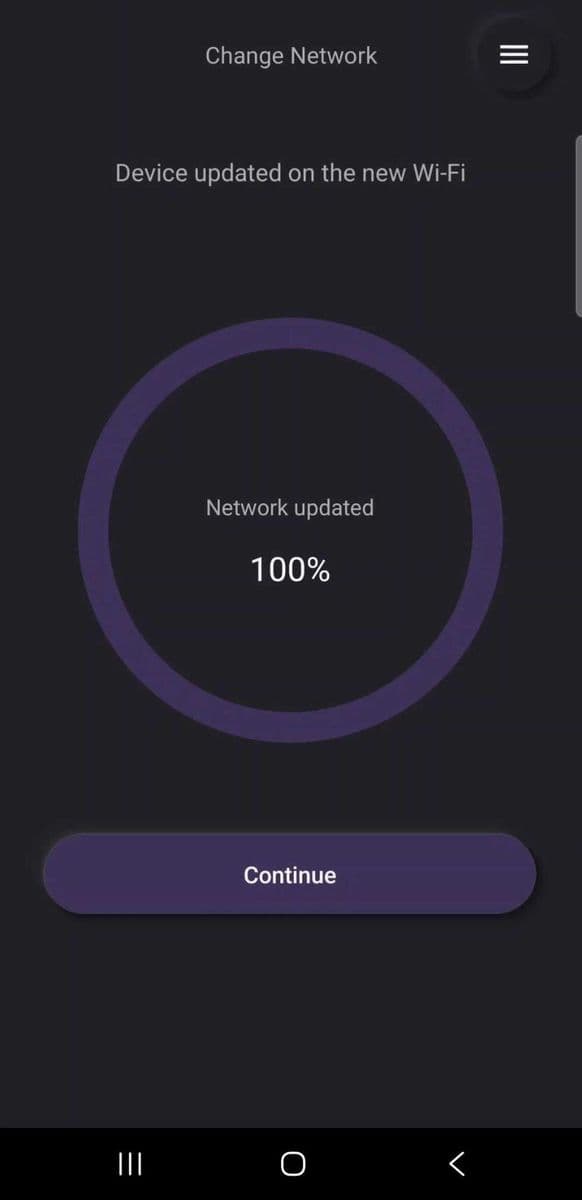
Tap Continue
When the switch is on the new Wi-Fi, tap Continue to update your other switches.
- Stuck on this step? WhatsApp us a photo
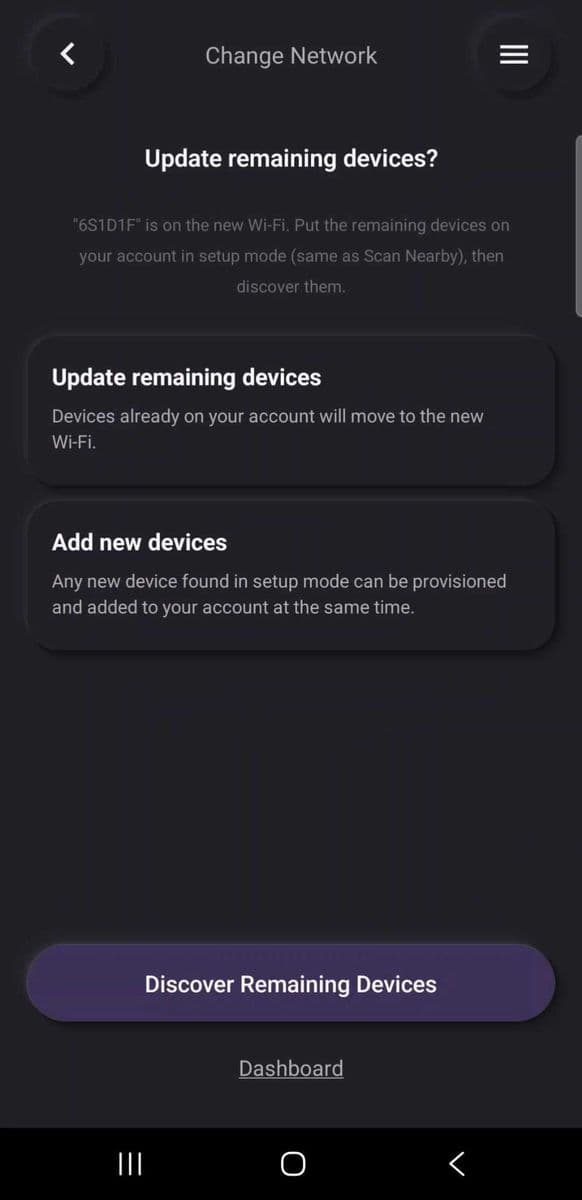
Tap Discover Remaining Devices
Read the on-screen steps and tap Discover Remaining Devices. Wait while the app scans.
- Stuck on this step? WhatsApp us a photo
Update the other switches
Select the switches to update, then tap Update & Add Devices. Wait while they update.
- Stuck on this step? WhatsApp us a photo
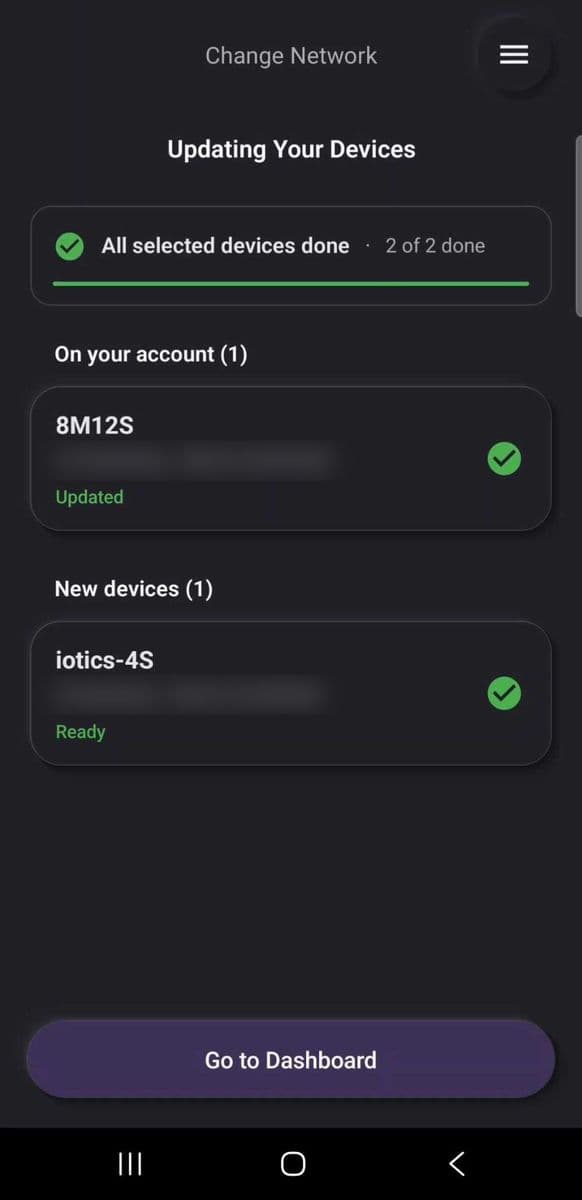
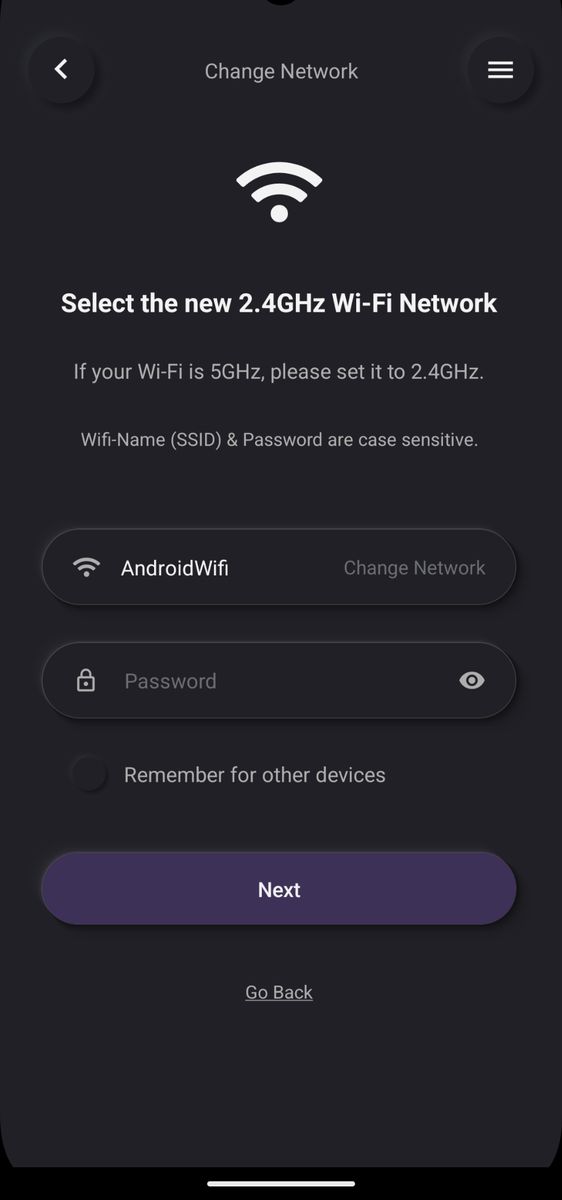
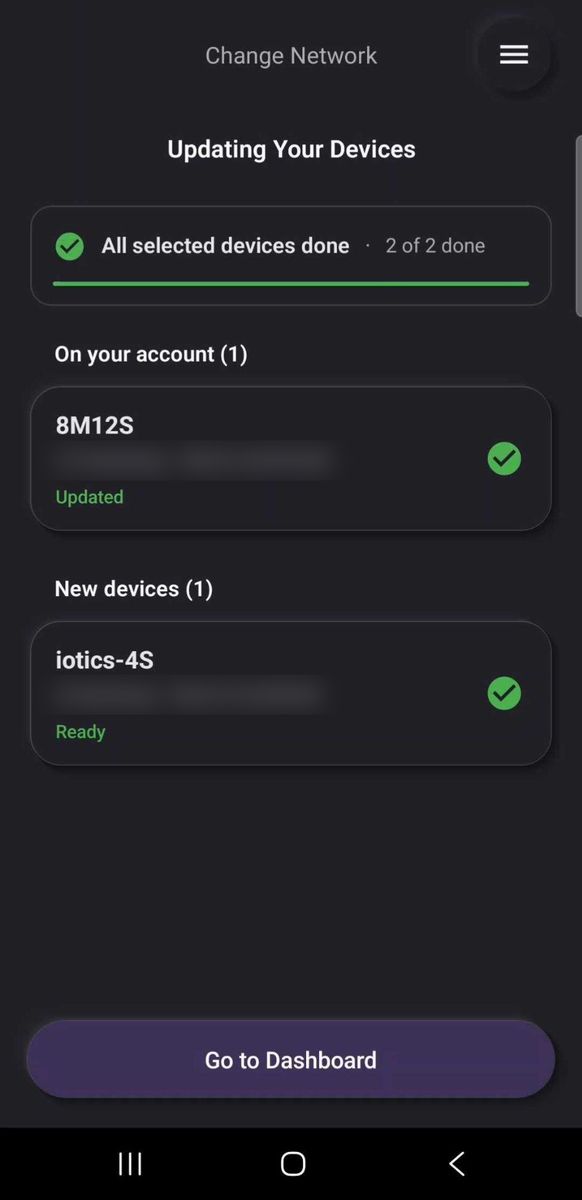
Tap Go to Dashboard
When all switches are done, tap Go to Dashboard. They are ready to use.