Connect to the iotics app — 6 Switch + 2 Fan
Before you start
- Use a 2.4 GHz Wi-Fi network. Keep your Wi-Fi name and password ready.
- Download the iotics app from the App Store (iPhone) or Play Store (Android).
- Make sure the switch is installed and the main power is on.
- Stay within 10 feet of the switch while you set it up.
- Stuck on this step? WhatsApp us a photo
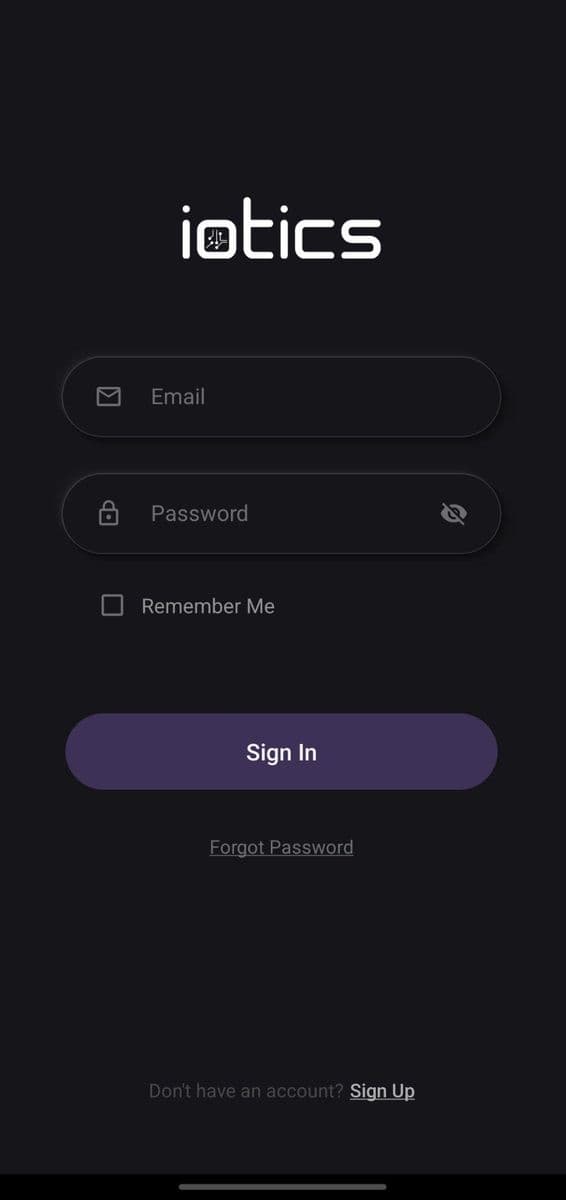
Install the app and sign in
Install iotics from the App Store or Play Store. Open it and sign in. New to iotics? Tap Sign Up first.
- Stuck on this step? WhatsApp us a photo
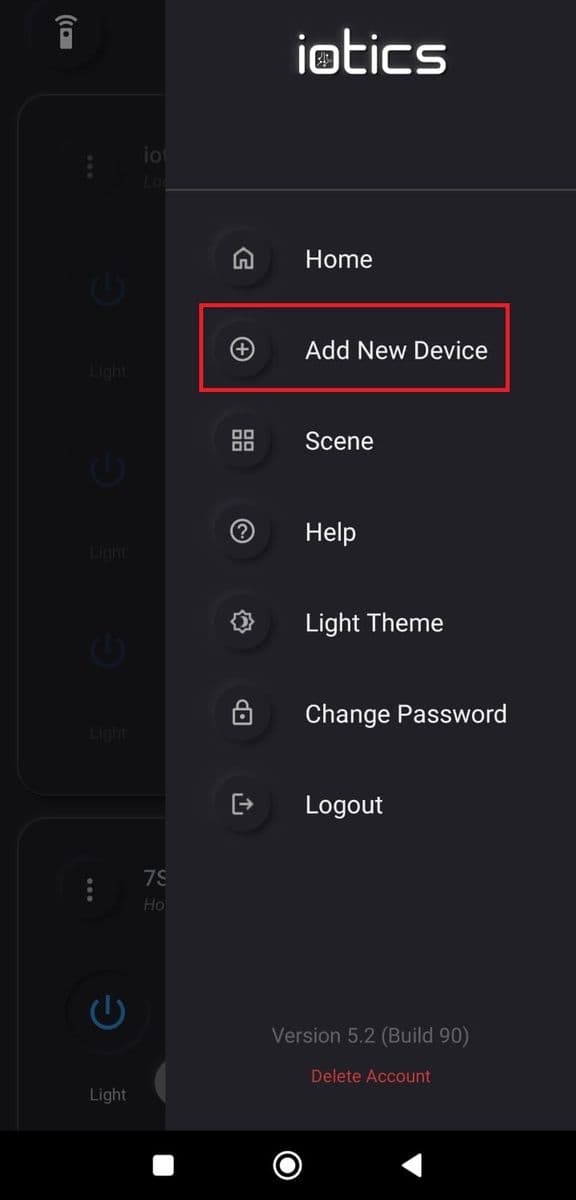
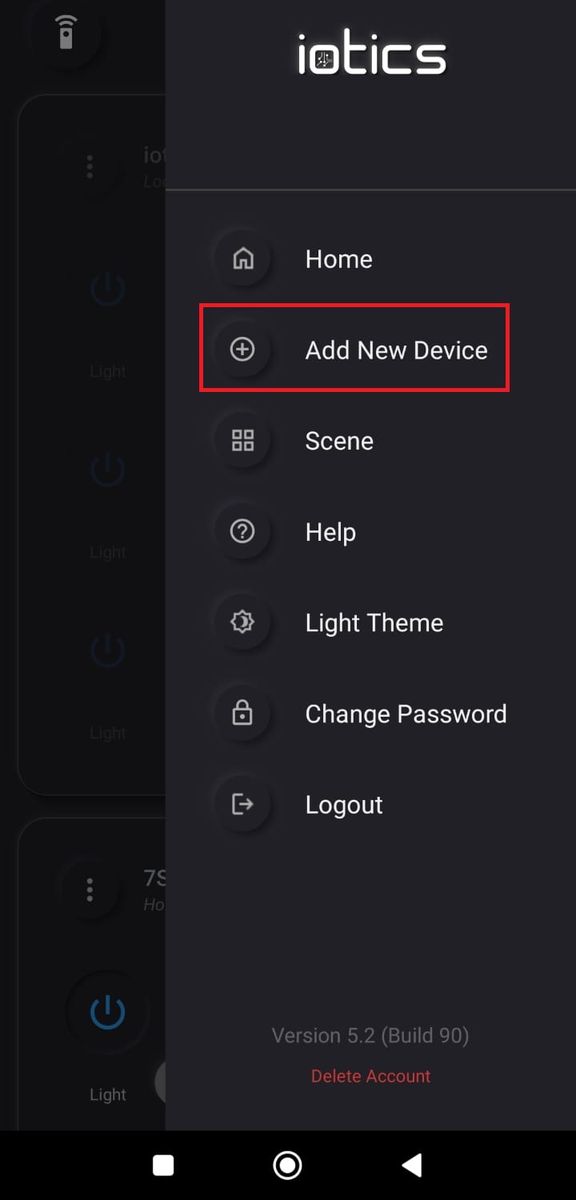
Tap Add New Device
Tap the menu (☰) at the top right, then tap Add New Device.
- Stuck on this step? WhatsApp us a photo
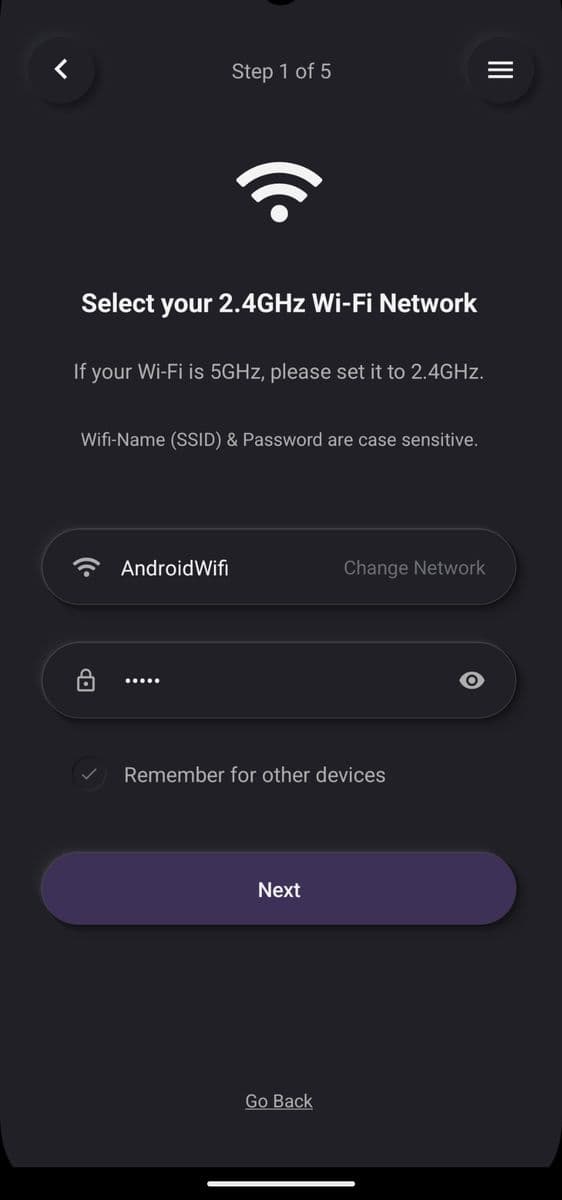
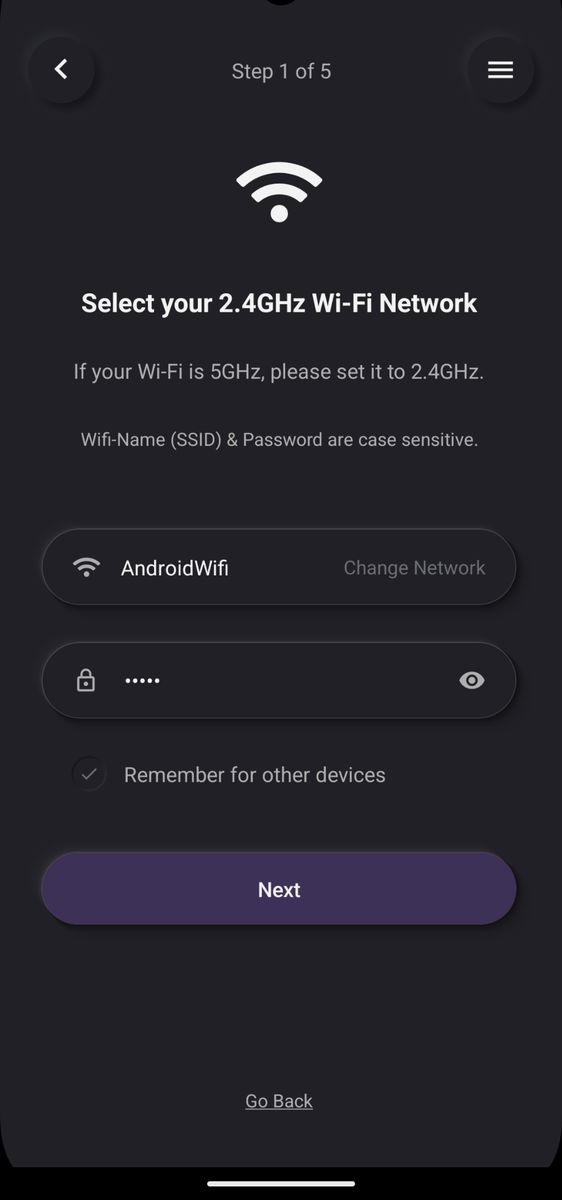
Enter your 2.4 GHz Wi-Fi
Choose your 2.4 GHz Wi-Fi network, type its password, and tap Next.
- Stuck on this step? WhatsApp us a photo
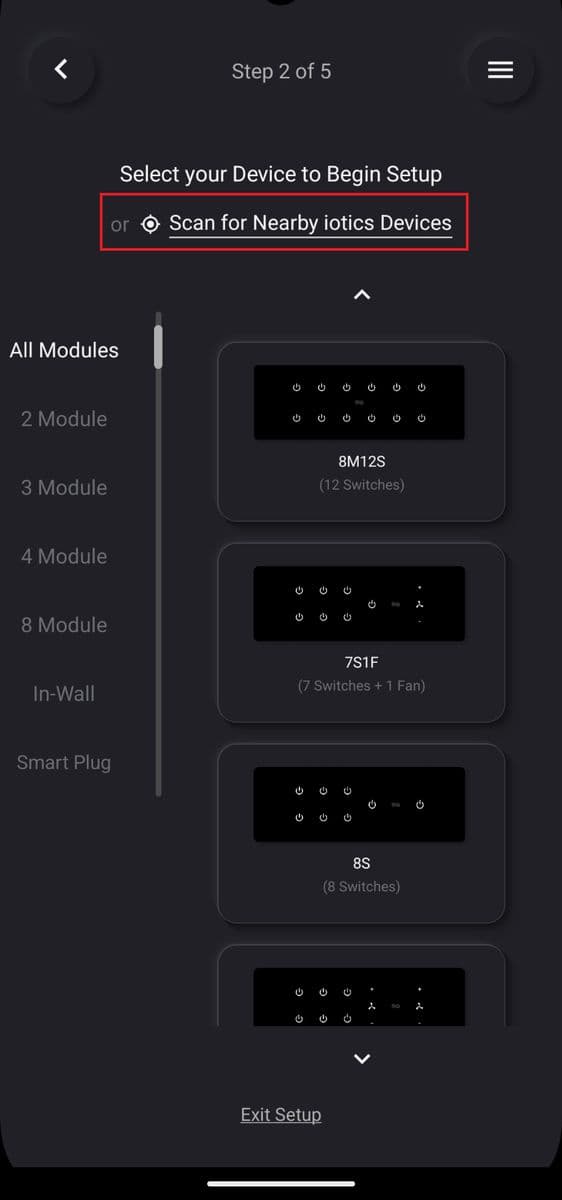
Tap Scan for Nearby iotics Devices
On the Select your Device screen, tap Scan for Nearby iotics Devices at the top.
- Stuck on this step? WhatsApp us a photo
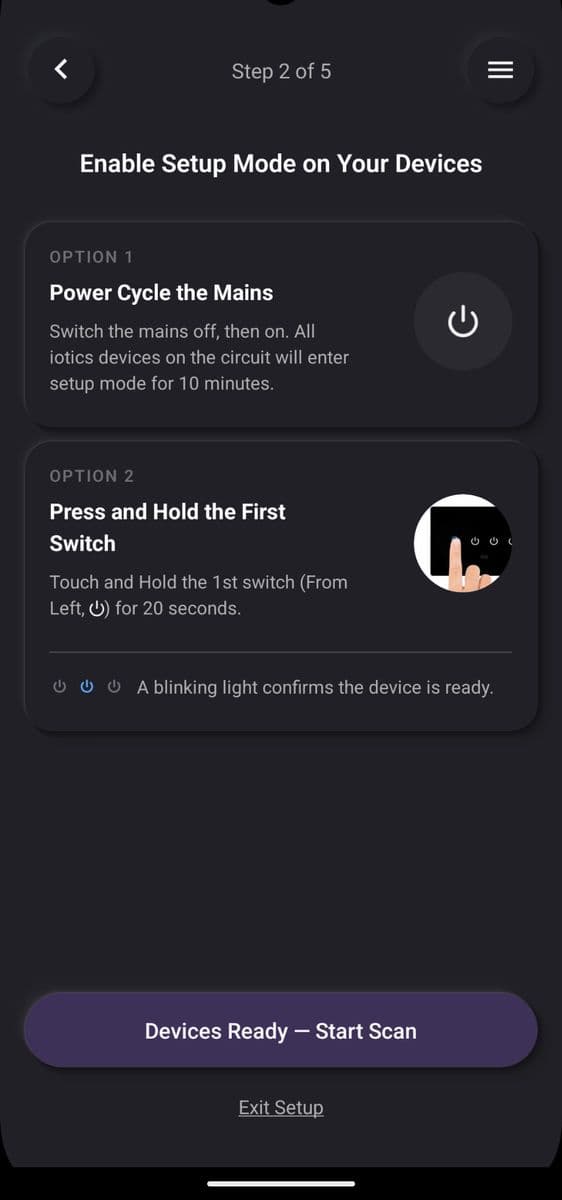
Put the switch in setup mode
Switch the mains off and on, or touch and hold switch 1 for 20 seconds. When a light blinks, tap Devices Ready – Start Scan.
- Stuck on this step? WhatsApp us a photo
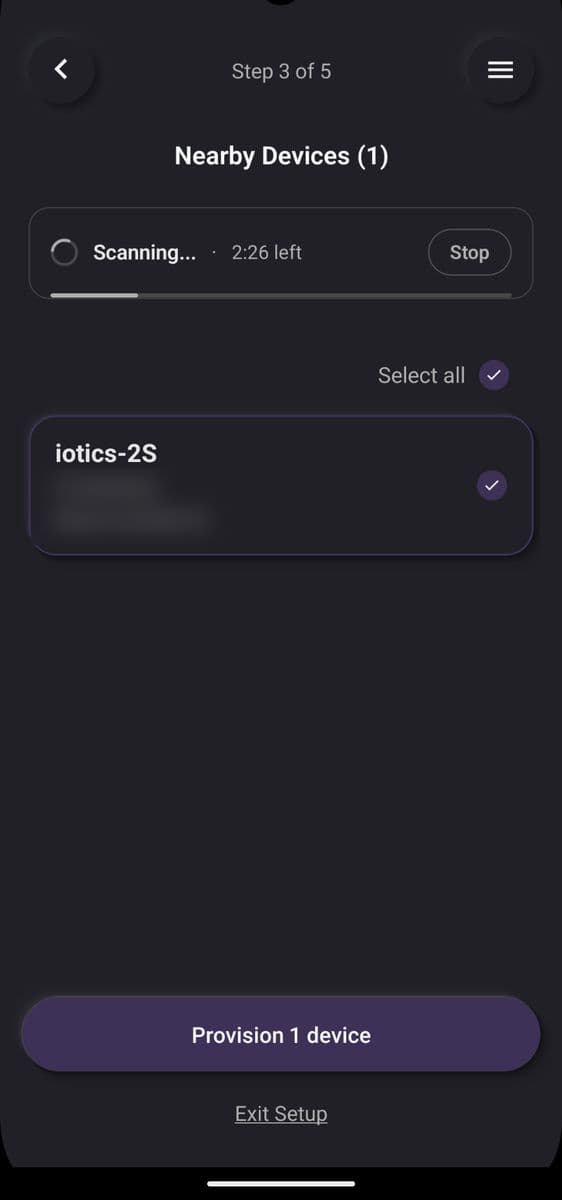
Select your switch and finish
Select your switch from the list and tap Provision. When all devices are ready, tap Finish Setup.