Mesh & peer setup — 7 Switch + 1 Fan
- Stuck on this step? WhatsApp us a photo
Set up your first switch
Connect one switch with the iotics app first. Then you can add the nearby switches together.
- Stuck on this step? WhatsApp us a photo
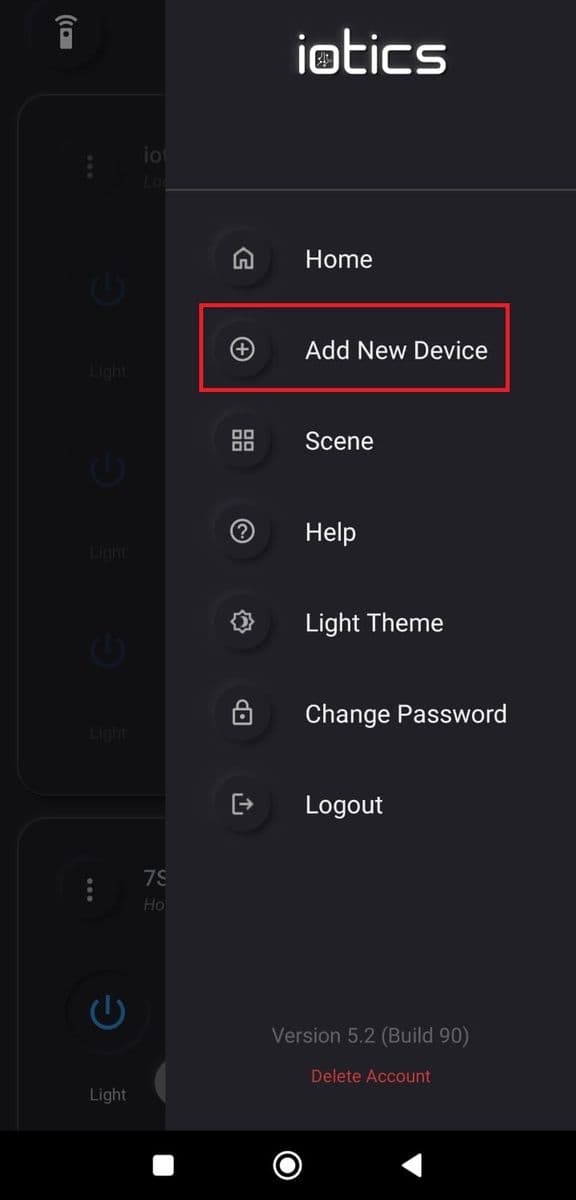
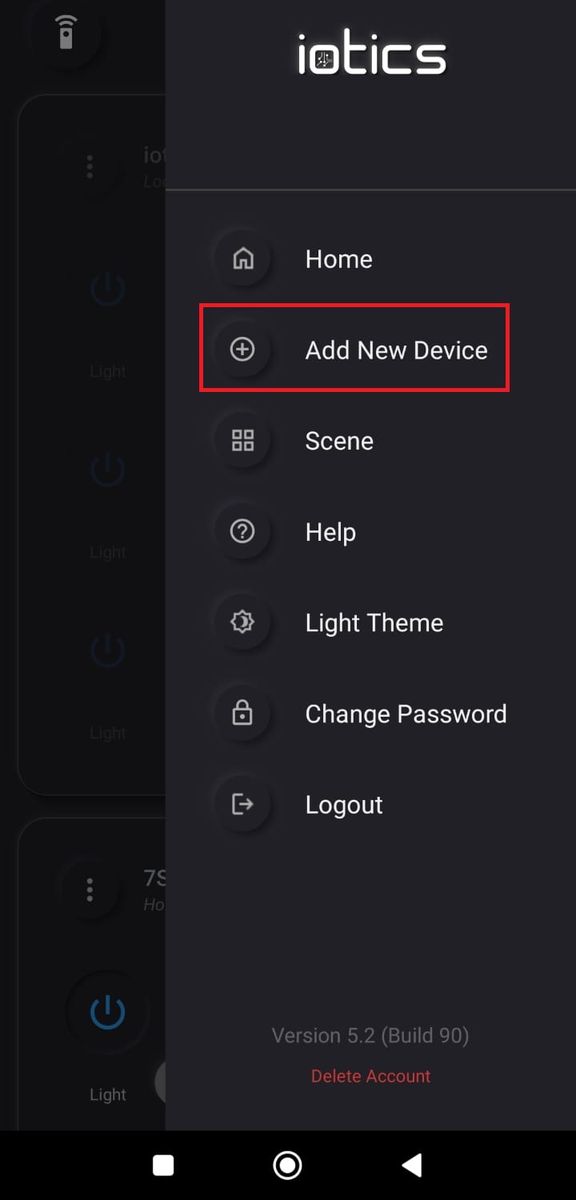
Tap Add New Device
On the Dashboard, tap the menu (☰), then tap Add New Device.
- Stuck on this step? WhatsApp us a photo
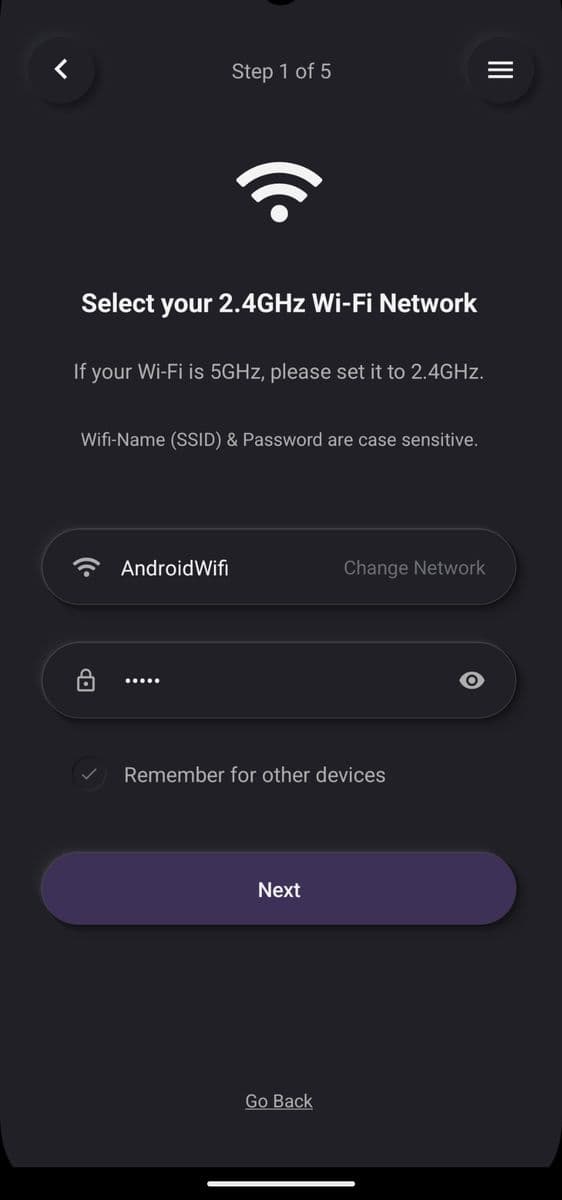
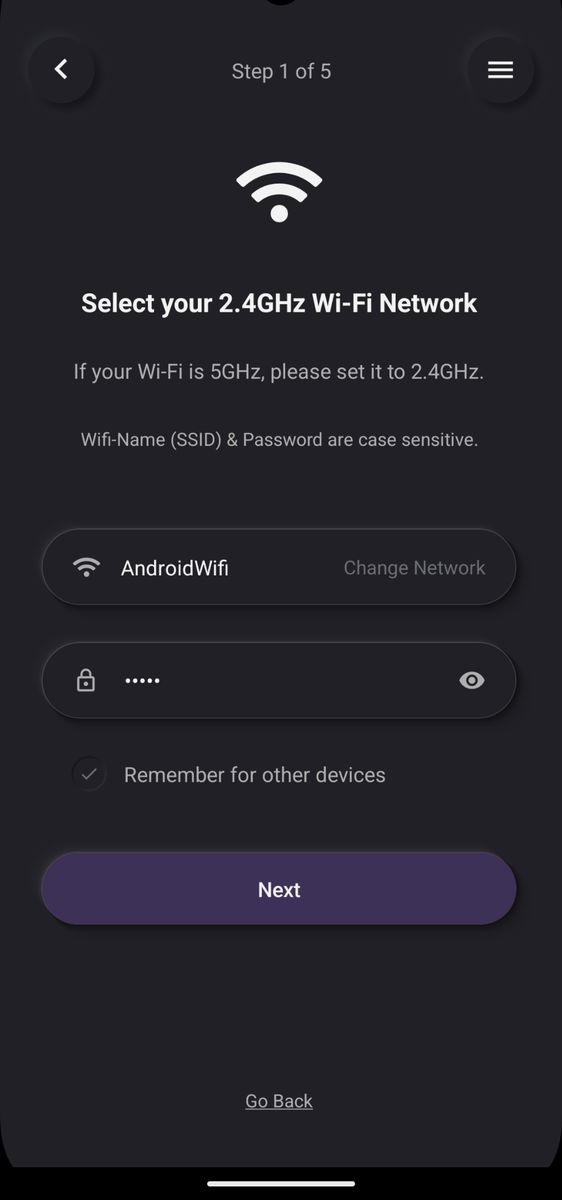
Enter your Wi-Fi details
Enter your Wi-Fi name and password, then tap Next.
- Stuck on this step? WhatsApp us a photo
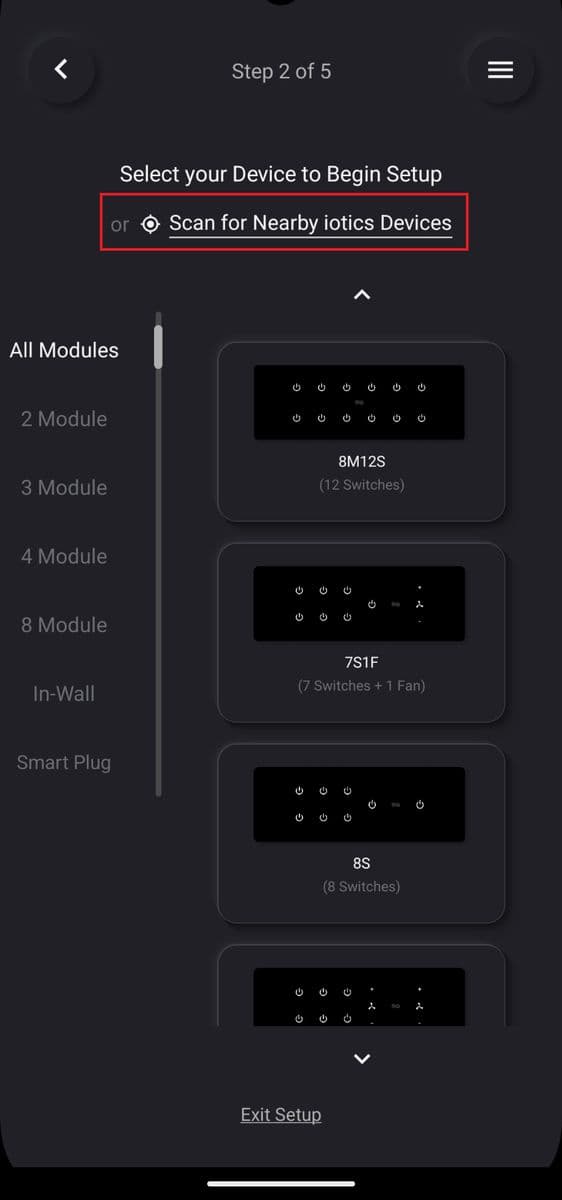
Scan for nearby switches
Tap Scan for Nearby iotics Devices.
- Stuck on this step? WhatsApp us a photo
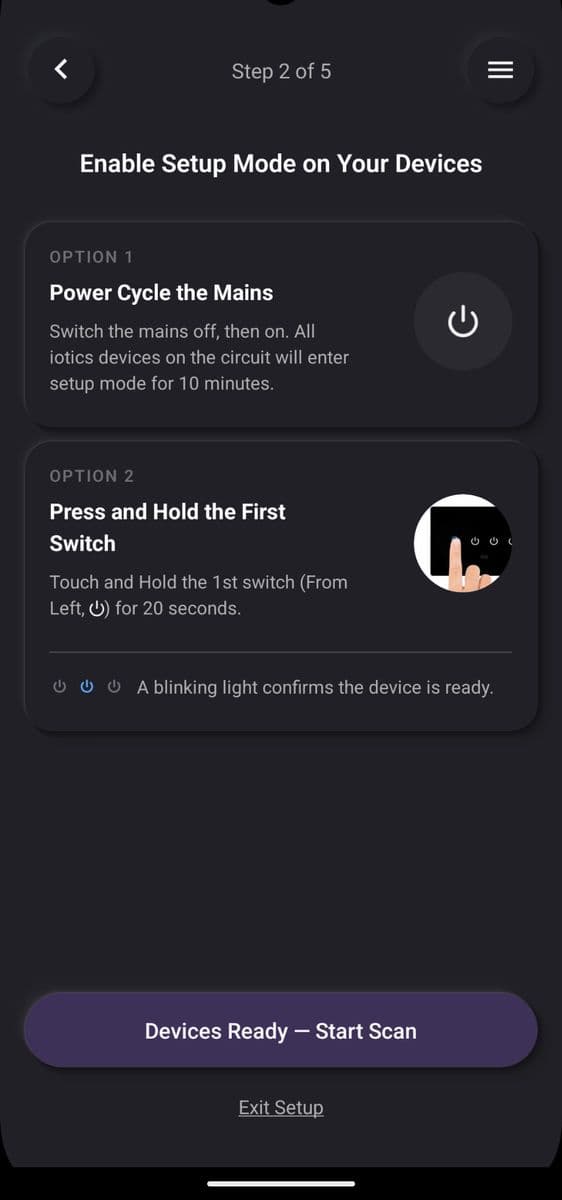
Start the scan
Follow the on-screen steps, then tap Devices Ready – Start Scan. Wait while the app scans.
- Stuck on this step? WhatsApp us a photo
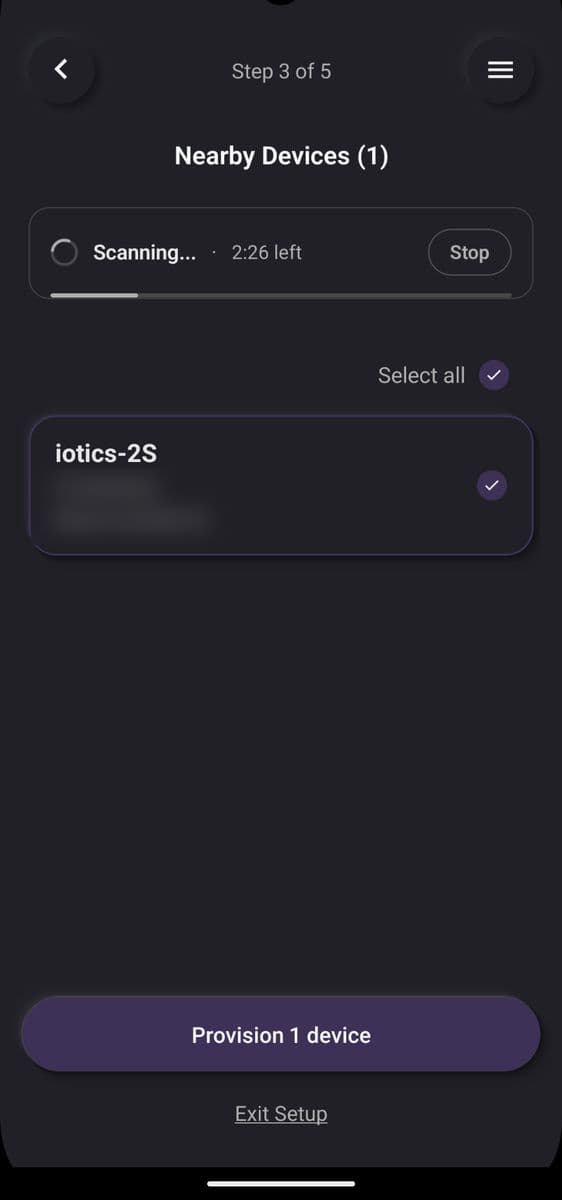
Select switches and provision
Select the switches you want to set up, then tap Provision. Wait while they are set up.
- Stuck on this step? WhatsApp us a photo
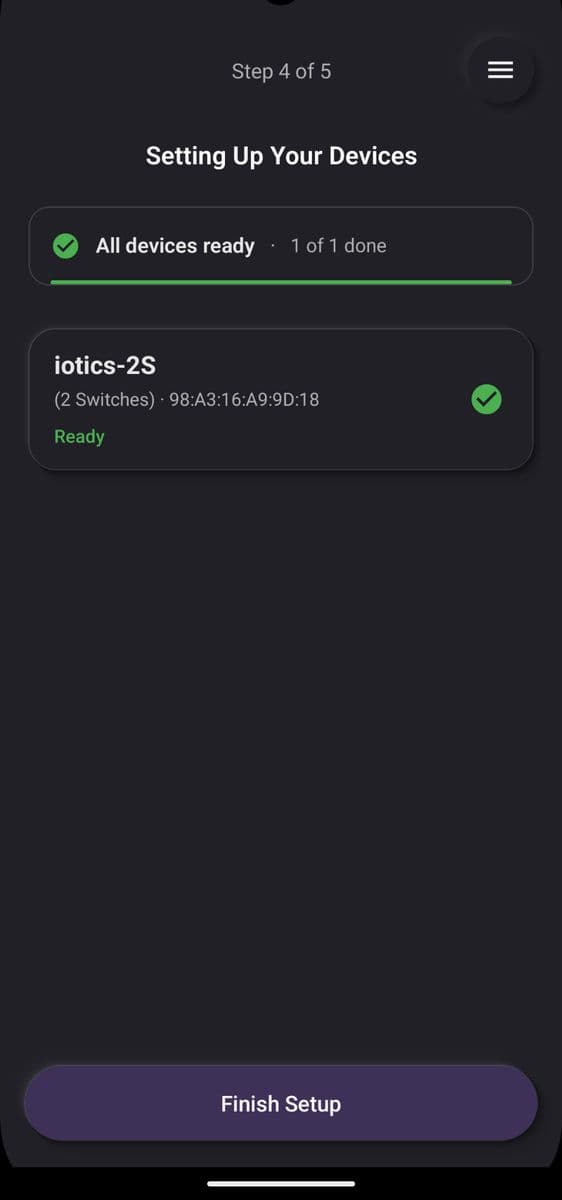
Tap Finish Setup
When setup is complete, tap Finish Setup. Your switches are ready to use.