IR blaster — 8 Switch
- Stuck on this step? WhatsApp us a photo
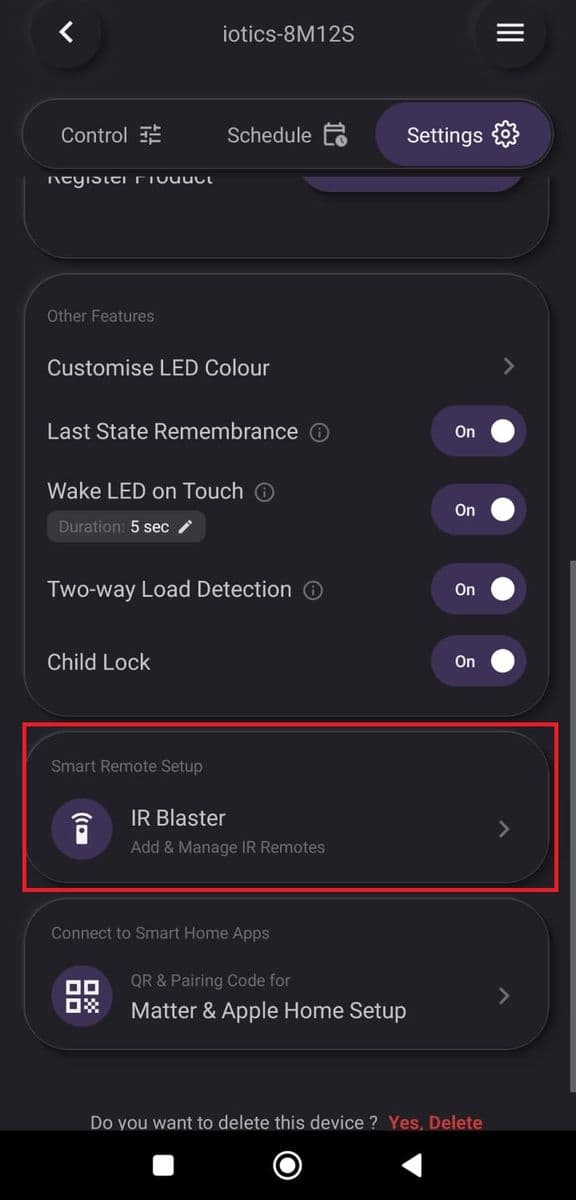
Open IR Blaster
On the Dashboard, tap ⋮ on your device, then Device Settings and Settings. Tap IR Blaster.
- Stuck on this step? WhatsApp us a photo
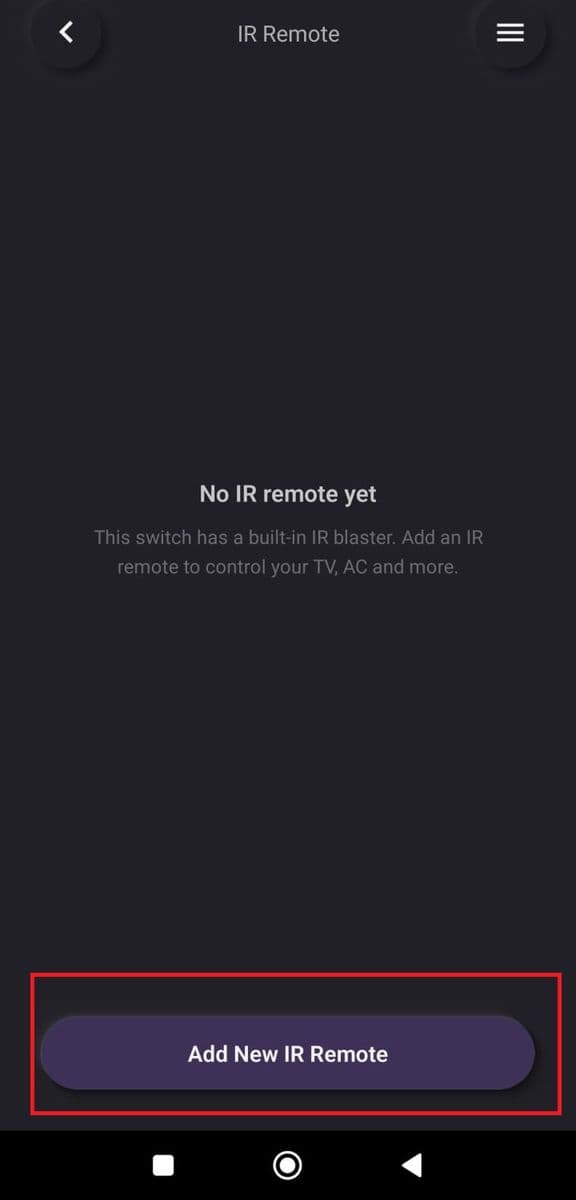
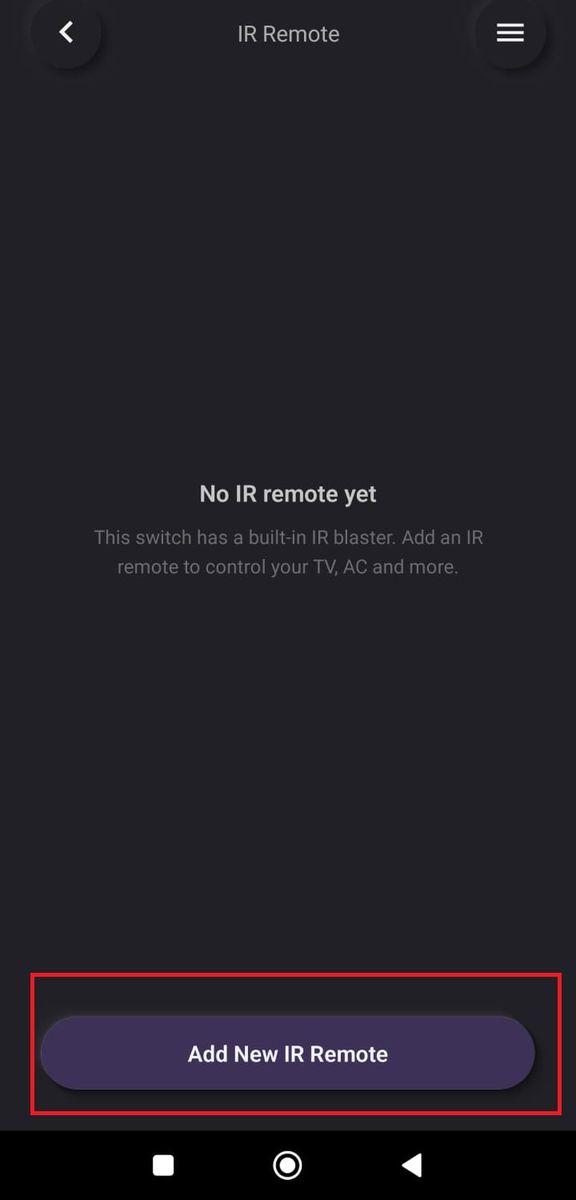
Tap Add New IR Remote
Tap Add New IR Remote.
- Stuck on this step? WhatsApp us a photo
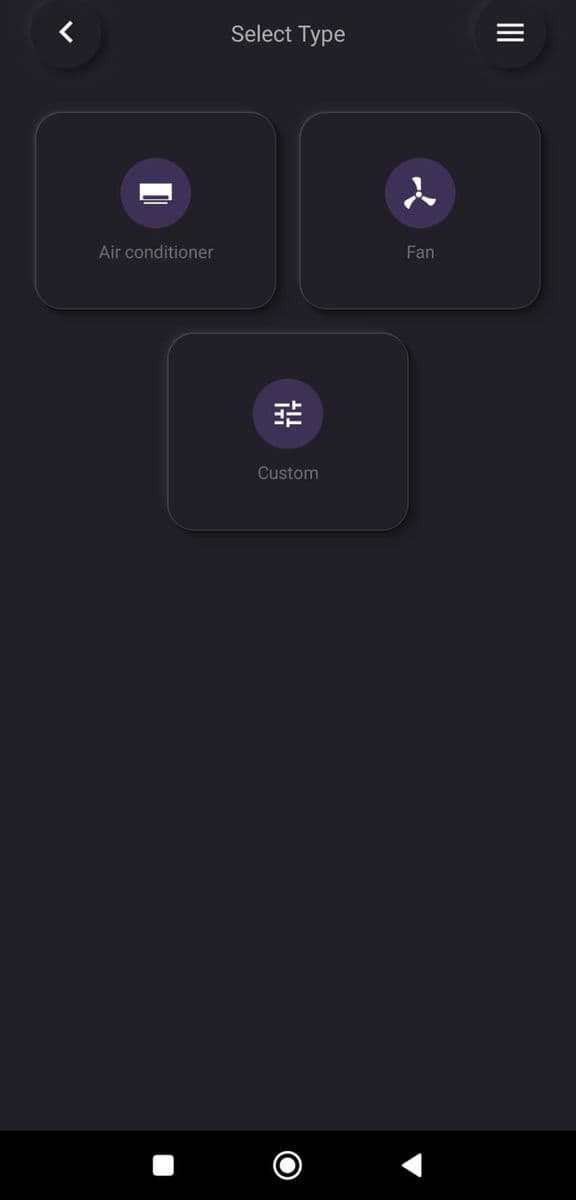
Choose the appliance type
Choose AC or Fan. For any other appliance, or if your brand is not listed, choose Custom.
- Stuck on this step? WhatsApp us a photo
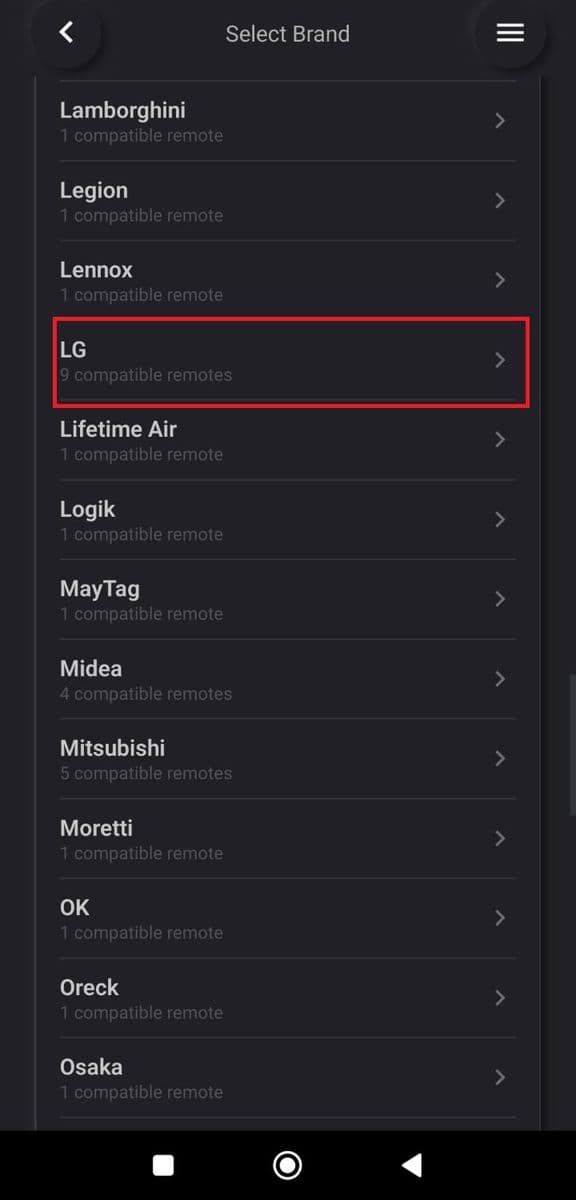
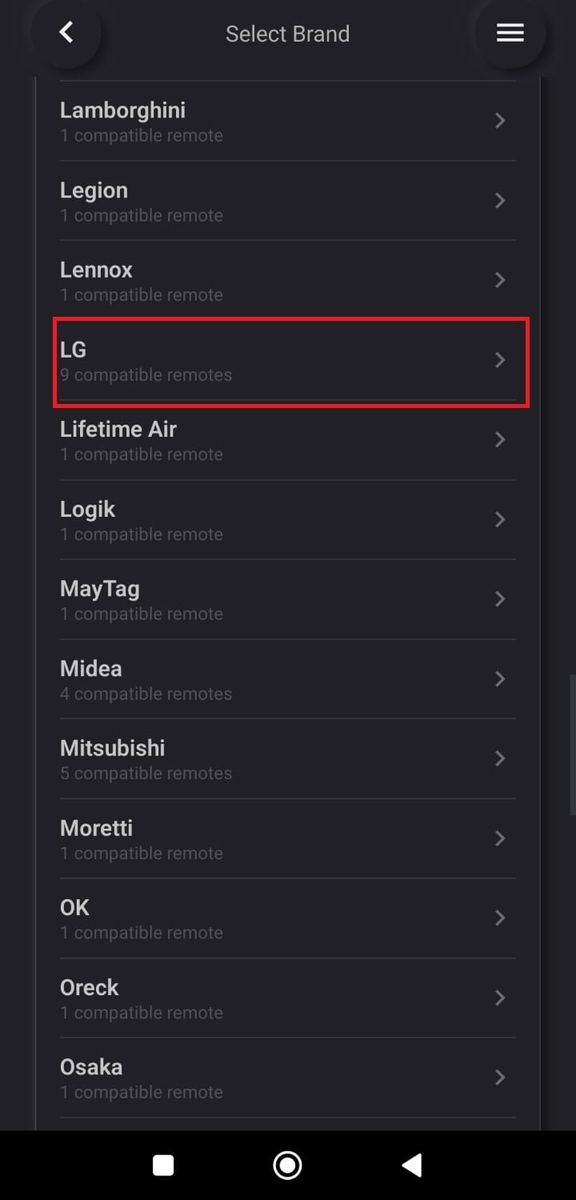
Select your brand
Select your appliance's brand from the list.
- Stuck on this step? WhatsApp us a photo
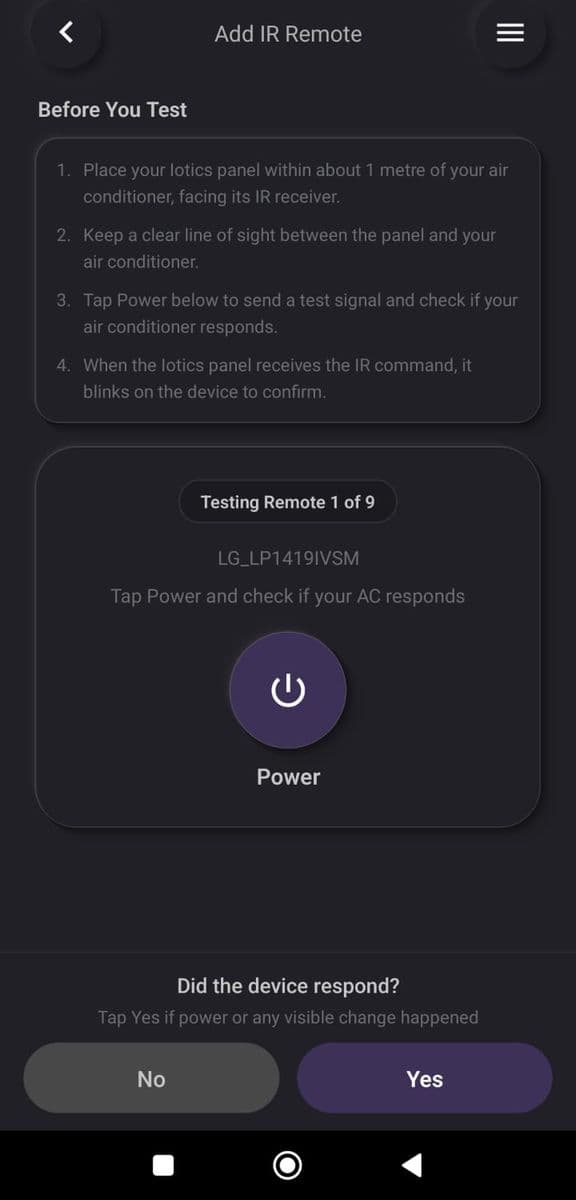
Test the remote
Tap Power. If your appliance responds, tap Yes. If not, tap No to try the next remote.
None of them work? Go back, choose Custom, and teach the app your own remote.
- Stuck on this step? WhatsApp us a photo
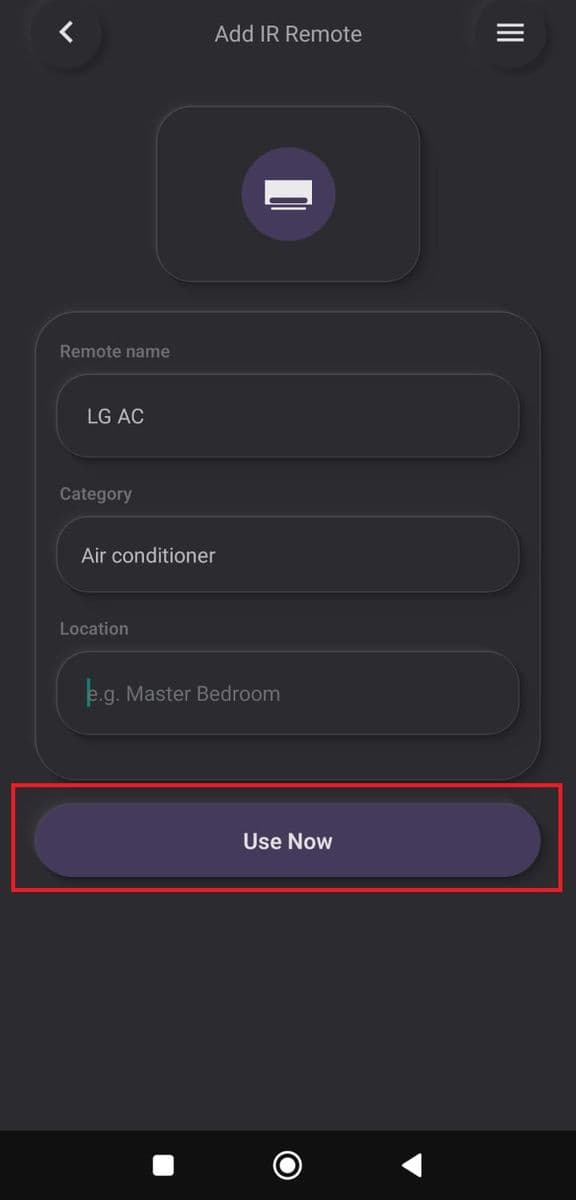
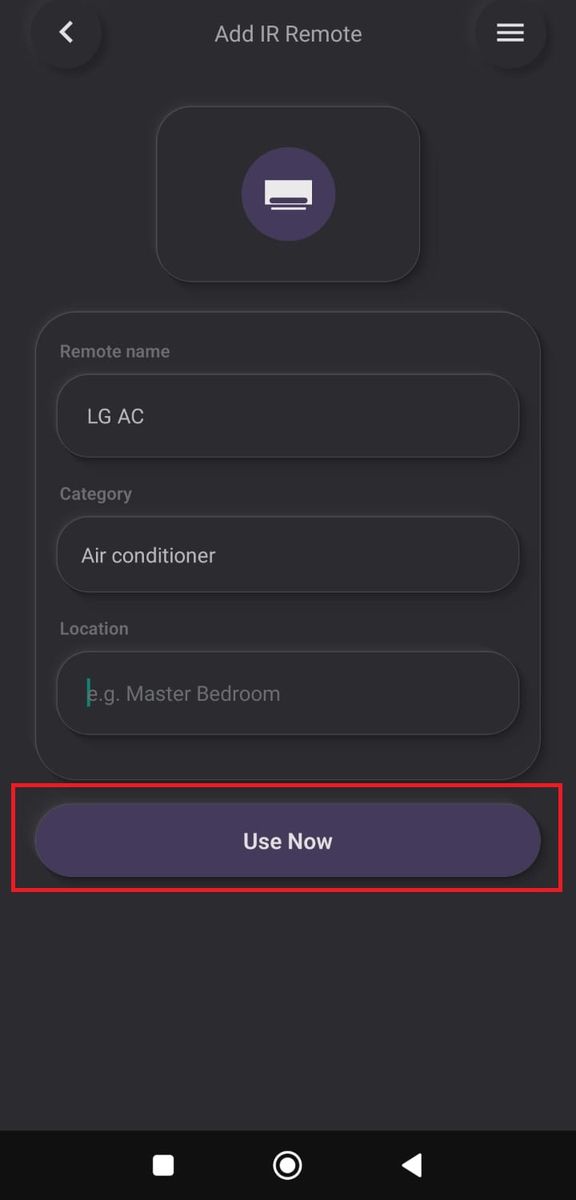
Name it and tap Use Now
Type a name for the remote and tap Use Now. It is added to your IR remote list.
- Stuck on this step? WhatsApp us a photo
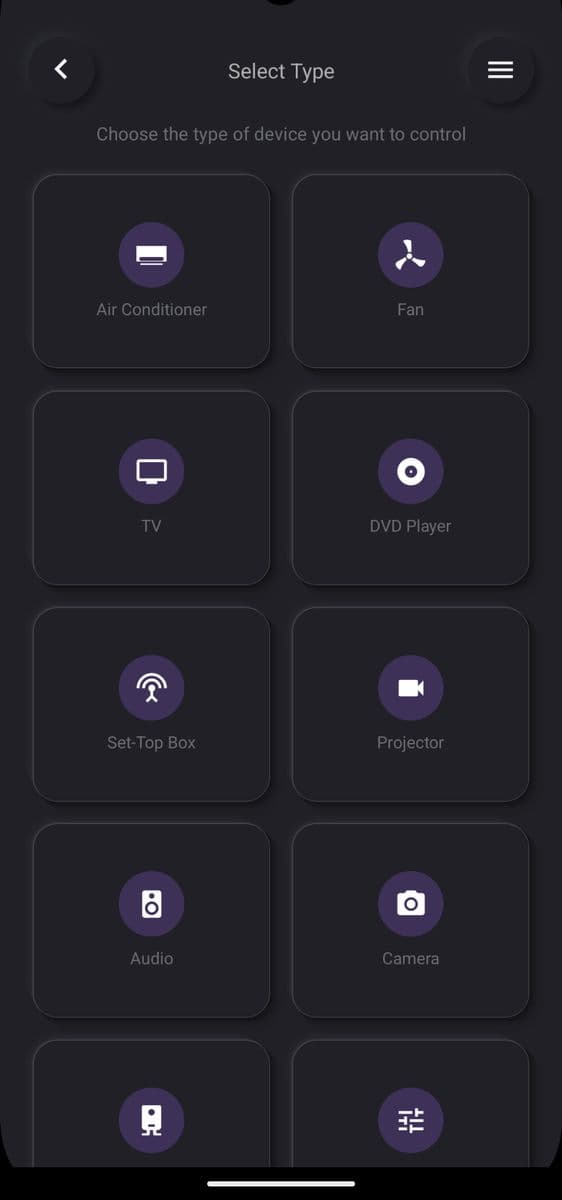
Custom: choose the device type
If you chose Custom, select the type of device you want to add.
- Stuck on this step? WhatsApp us a photo
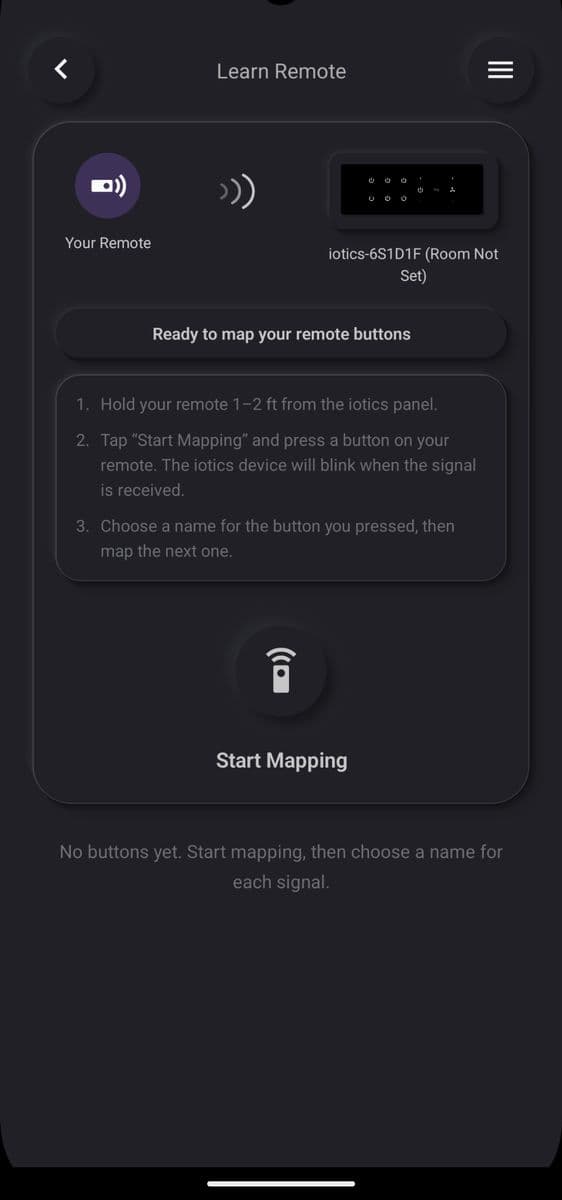
Custom: tap Start Mapping
Read the instructions, tap Start Mapping, and follow the on-screen steps to copy your remote's buttons.
Hold your appliance's remote 1–2 feet from the switch panel while mapping.
- Stuck on this step? WhatsApp us a photo
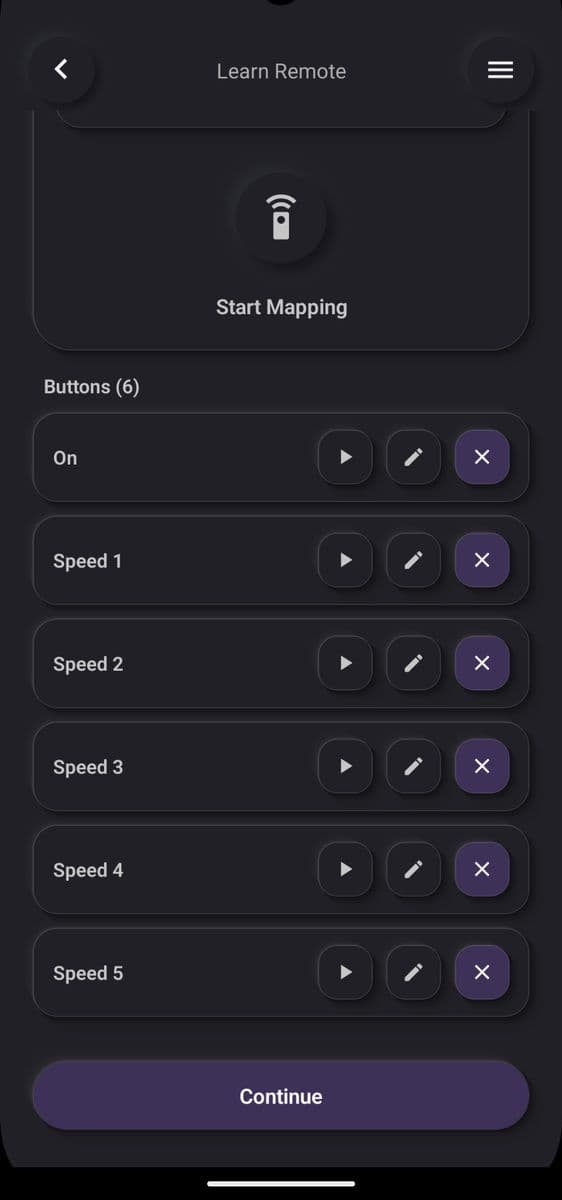
Custom: name the buttons
Give each mapped button a name. When all the buttons you need are mapped, tap Continue.
- Stuck on this step? WhatsApp us a photo
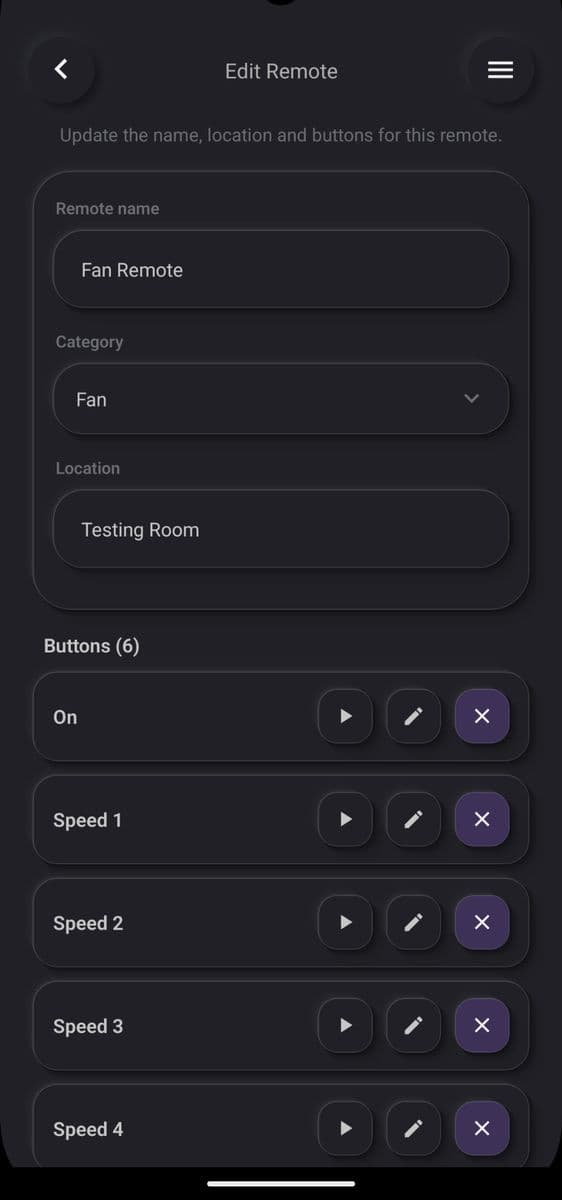
Custom: save the remote
Enter the remote name, category and location, then save. Your new remote is ready in the app.